Excel and AI: Everything You Need to Know in 2026

Can AI replace the need for Excel expertise, or has the hype gone overboard?

The early hype around AI and Excel promoted AI as a tool that could solve anything and everything. Three years later, the truth is more sobering. AI can be a powerful assistant, but it’s far from the be-all and end-all of solutions. 

Unfortunately, the result of that initial hype machine is that the market is now flooded with dozens of AI tools and plugins, leaving consumers confused about which work best, if at all. 

As far as Excel goes, Microsoft 365 Copilot has become the dominant solution, while scattered third-party solutions have mostly disappeared or are only used in niche cases. 

While Copilot is far from as revolutionary as the hype made us believe, it does reduce some heavy lifting when used properly. Even more useful, in our opinion, is Python for Excel, a lesser-known AI tool that offers far more reliability than Copilot and other chatbots. 

In this article, we’re going to touch on the actual use cases of AI in Excel, where it works, where it doesn’t, and what to be aware of when using it. 

A brief history of AI in Excel

It wasn’t long after OpenAI released ChatGPT that we started seeing AI tools for Microsoft Excel. The first iteration of tools was formula-based, using a formula like “=GPT()” or “=AI()” where you could provide a text prompt inside a cell to get AI to perform some task. 

Realistically, such plugins did little to save time. 

The next breakthrough came when Microsoft announced Python for Excel. Python is a powerful programming language that’s used extensively by researchers and data scientists to analyse huge datasets. It has built-in language processing and machine learning capabilities that either don’t exist in Excel or are far more efficient in Python. However, not everyone’s a Python programmer. This use case of AI in Excel is somewhat specialised, and not what most people think of when discussing “Excel and AI.”

While no official numbers exist, we can make an educated guess that Copilot for Excel is the most popular tool because it’s already integrated into Excel. However, this tool becomes less useful the more complex your Excel needs become. 

Understanding AI’s mathematical limitations

Before diving into the tools themselves, it’s important to understand AI’s inherent limitations. 

Artificial Intelligence as a field existed long before ChatGPT. NASA defines AI as “computer systems that can perform complex tasks normally done by human reasoning, decision making, creating, etc.” Many Excel tools, especially sophisticated ones such as a sales forecasting tool, could also be considered AI because they make decisions and handle complex tasks. The same might be said about a complex workflow automation tool

The banking industry has used artificial intelligence and machine learning (ML) tools since the 1980s, especially in the area of credit scoring. These tools are highly capable mathematically, but they’re built on entirely different architecture than the current wave of AI. 

The new wave of AI is called “Generative AI,” and some AI experts don’t even consider it part of the AI field at all. At its core, generative AI predicts patterns of text. It does this by ingesting huge quantities of textual data, converting that data into numbers, and then establishing statistical patterns about which words are most likely to follow which other words. 

While outputting the next-most likely word isn’t an especially incredible feat in itself, being able to output the next-most likely group of words and paragraphs means that generative AI can provide lengthy answers that mostly make sense. This is important because generative AI is a text-only tool. It doesn’t have any underlying mathematical computation abilities. 

Most people are surprised to hear that, but it’s 100% true. In a traditional computer, mathematics is performed in a special part of the processor called the Arithmetic Logic Unit (ALU). These units are physically incapable of providing an incorrect answer to “1 + 1” because they’re dealing with the digit “1” and the operator “+”, which are programmed to work together in the ALU. 

When ChatGPT and Copilot see “1 + 1”, they are incapable of treating each of the separate characters as digits or operators. Their underlying architecture only handles text. If you train an AI on enough sequences of “1 + 1 = 3”, it will eventually output “3” as the logical follow-on to “1 + 1”. 

This simply can’t happen when working with ALUs, which deal directly with digits.

It’s for this reason that generative AI is more widely used by consumers than in mission-critical contexts such as the medical and finance sectors. 

Because Excel is a mathematical tool, how is it possible to use AI effectively in Excel?

Well, the simple answer is that it’s not entirely accurate. For solutions that require high accuracy, AI is less useful than most people think. 

However, keep in mind that Excel itself does most of the mathematical calculations. AI can still help put formulas together, create charts, and analyse data—to a limited degree. 

Let’s take a look at some of the AI tools you can use with Excel. 

Microsoft Copilot

While Microsoft Copilot isn’t necessarily the best option for using AI with Excel, it’s the one that’s available by default for Microsoft 365 subscribers. 

The shortcut to start using it is available from the Excel Ribbon for anyone with a Microsoft 365 Subscription. 
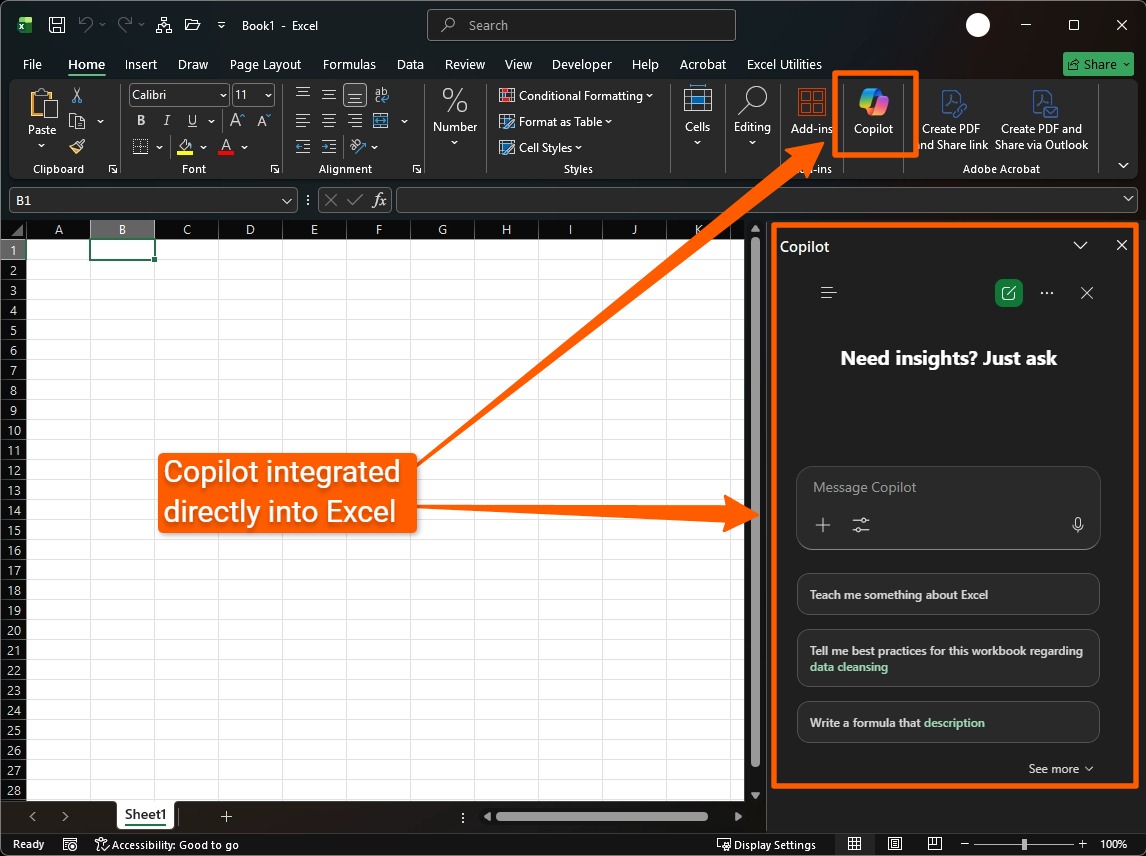
Copilot in Excel

After clicking it, you’ll see a familiar chat interface where you can ask Copilot questions about Excel in general, or about the workbook you’re currently working on. 

Important: No matter what task you’re asking Copilot or any other AI to do, you must verify the results because AI is known to hallucinate. For low-risk tasks, this isn’t so important, but it’s vital for critical data, such as customer records or financial information. If accuracy is important in your data, we strongly recommend getting a custom Excel tool developed that can do most of the tasks we describe below, and with far more accuracy. 

Before getting started

Copilot can only edit Workbooks saved to the cloud in OneDrive, and AutoSave must also be turned on for it to work. For some businesses, this might result in privacy issues, in which case they’d have to use an alternative service instead of Microsoft Copilot. 

Another problem with AutoSave is that it prevents users from experimenting with formulas because all changes are saved immediately to the cloud. 

If you still have trouble accessing Copilot after saving your workbook in OneDrive and enabling AutoSave, you can open the file in OneDrive Online and edit it there. 

If that isn’t feasible, then consider using one of the other AI options, such as Claude for Excel, which we discuss below. 

Data cleaning with Copilot in Excel

Often, data in Excel files or databases isn’t stored accurately, such as when telephone numbers are stored in a column for emails, or when a person’s last name is entered into the first name column. This might seem unimportant because one can visually see any errors. However, it causes many problems when you need to automate tasks, such as for creating bulk mailing envelopes or automating the sending of emails and SMSes to customers. 

In the example below, we have a messy Excel spreadsheet with precisely these kinds of errors in it. 
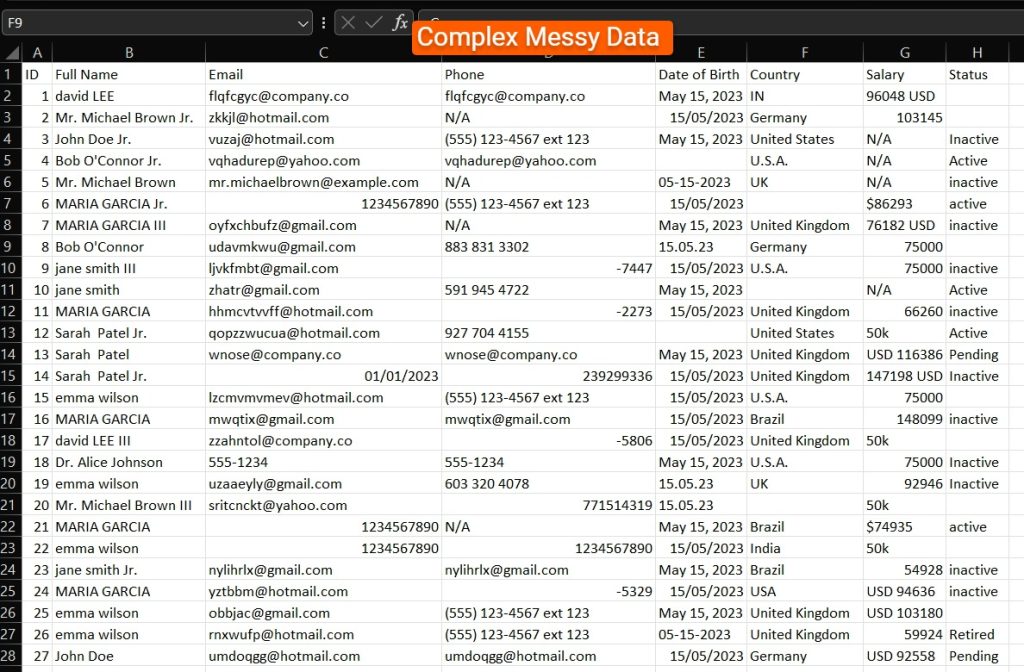
Messy Data in Excel

First, we need to ensure Copilot can edit the spreadsheet directly by toggling that option in the interface, as shown below. 
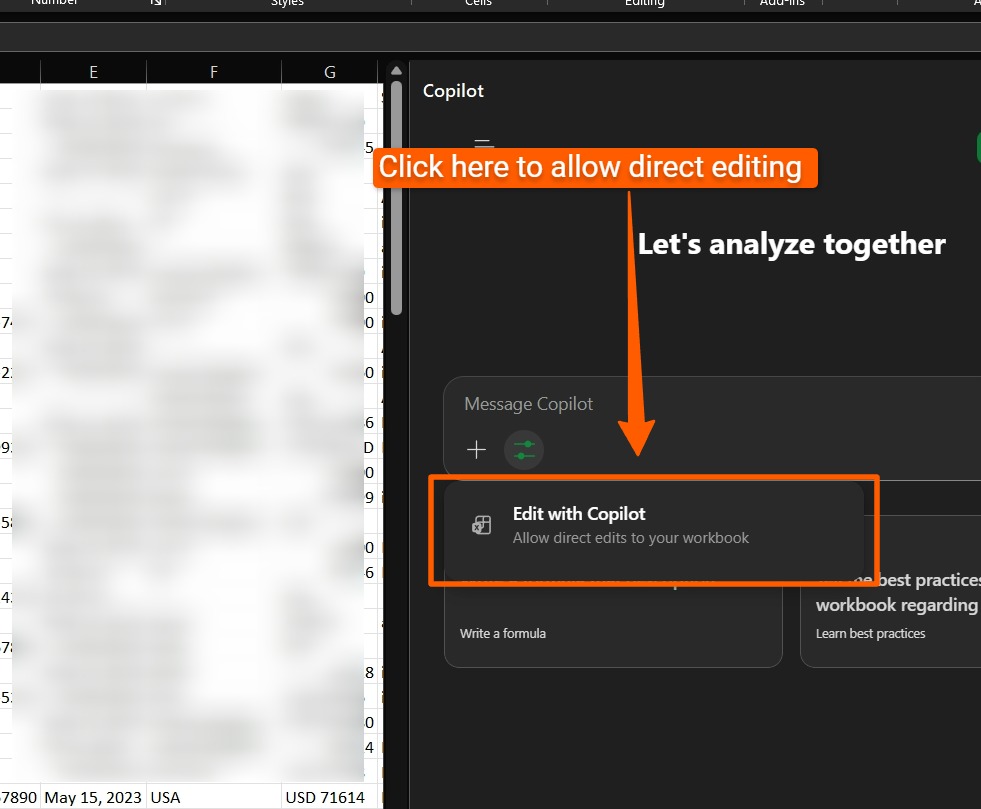
Copilot edit with Excel

Alternatively, you can also select “Plan” mode, which lets you discuss changes to the sheet before Copilot goes ahead with them. 
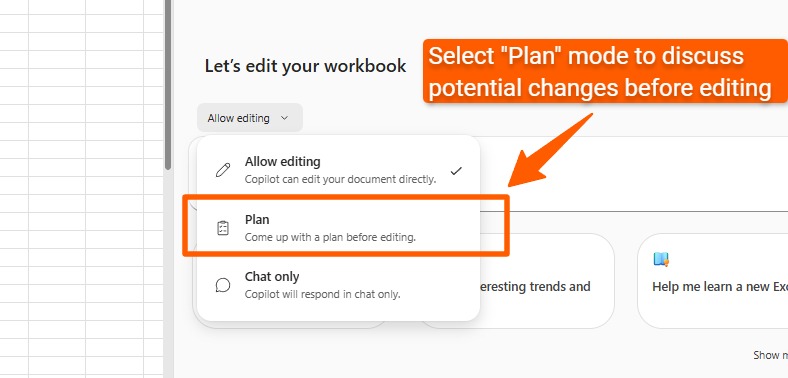
Copilot Plan Mode

After prompting, Copilot might ask some clarifying questions, especially if the data is particularly messy, as ours was. You might need to prompt it again to ensure it completes the job thoroughly. 

Ideally, you’d verify the cleaned data manually or with a custom macro (which we can help you program). 

Analysing trends

One of the earliest use cases for AI and Excel was analysing trends. This was possible even before Copilot for Excel. You could simply upload the spreadsheet to a service like ChatGPT or Claude and ask it to analyse your data. Now, it’s available inside Excel itself through Copilot. 

In addition to asking Copilot to analyse the data inside a workbook, you can take it a step further and get it to design an entire dashboard based on the analysis, as we do below. 
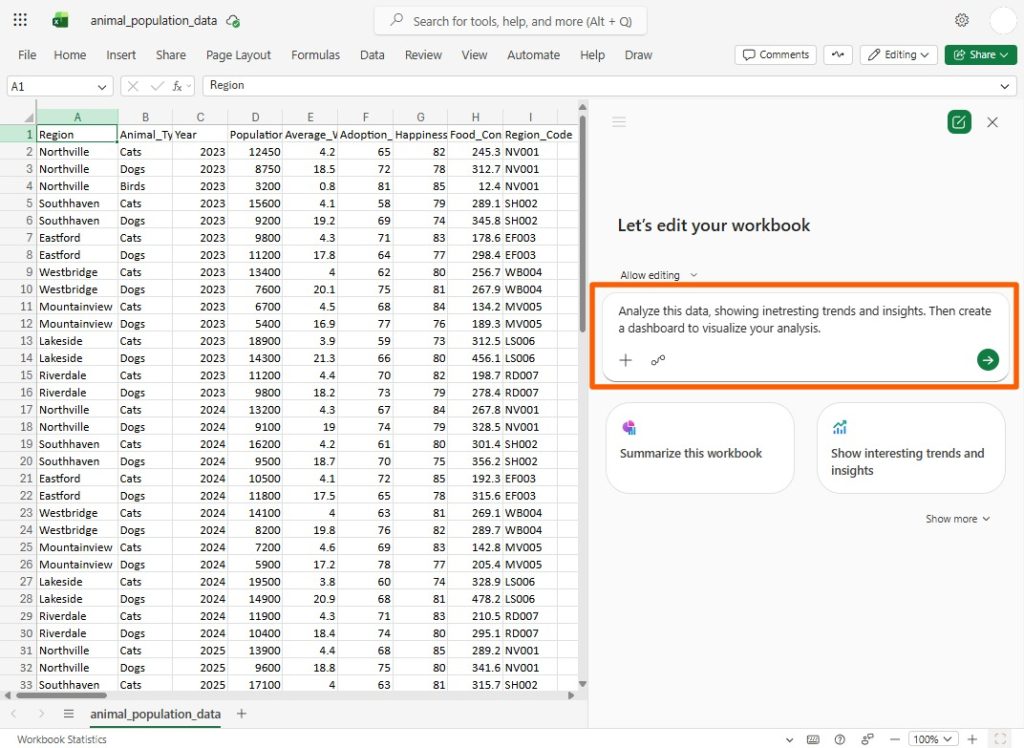
Data Analysis Excel

The dashboard it created for us was far from boardroom-level quality and looked rather amateurish, to be quite honest. Still, for people who have no idea at all how to use Excel, it provides a decent springboard to get you started with charts and summary tables. However, for more sophisticated, easy-to-read dashboards, we’d recommend using good old-fashioned pivot charts, or calling in an expert to help. 

Dashboards don’t take a long time to create for a pro, and the quality between that and what AI creates might be the difference between a sale and no sale, if you’re using the dashboard in a sales presentation. 
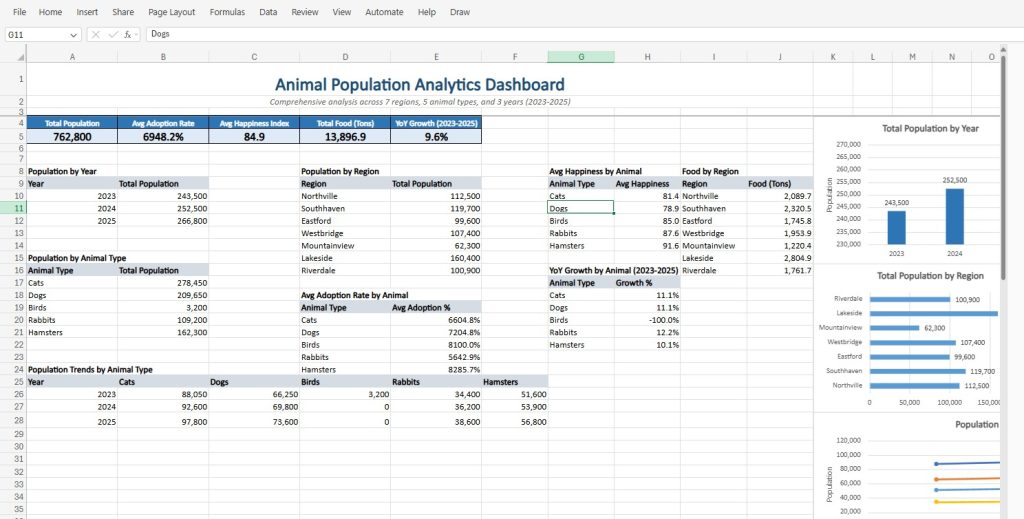
Excel Dashboard With AI

Creating complex formulas

Many websites like to brag about AI’s ability to create highly complex formulas. As Excel experts who’ve been creating Excel solutions for over 30 years, we can say unequivocally that “creating complex formulas” is one of the biggest mistakes people make when using Excel. The essence of a great Excel workbook is to do complex things with the simplest possible formulas. 

Still, if you’re a fan of miles-long formulas in a single cell, Copilot can certainly help you create those. If the formula is incorrect, then fixing it becomes far more challenging. Ideally, you’d split the formula into multiple columns to simplify each part. 

Indeed, that’s a far better use for Copilot in Excel: Asking it to simplify an immensely complex formula.

General Queries

You can also ask Copilot general questions that don’t have anything to do with Excel, or ask it about the file you’re working on. 

Agent Mode in Copilot

Microsoft recently released an “Agent Mode” for Copilot, where you provide instructions about what kind of workbook you want to create, and Copilot takes off to do all the work for you. As with all “Agent Mode” offerings in the wild today, the results can be surprising. In some cases, it might save you time. In all cases we’ve seen, you’ll certainly need to tweak the final workbook to make it work the way you intended it to. 

If you need help with that, send us an email

Claude for Excel

Claude for Excel is an excellent alternative to Copilot for Excel, and many users prefer it over Copilot. The general consensus is that Copilot is acceptable for simple tasks, while Claude for Excel is better for Power Users. 

One major advantage of Claude for Excel is that you don’t have to save files in OneDrive to use it. You also don’t need to enable AutoSave. 

Some of the other benefits that users report when using Claude for Excel are: 

  • Stronger at Power Query
  • Faster responses
  • Multiple formula options in responses
  • Better with complex or multi-sheet models

Claude’s response time is significantly faster than Copilot, with answers appearing within one or two seconds. Claude also provides more formula options, which is great if you want to keep your workbook neat and maintainable. 

Copilot doesn’t exist inside the Power Query M Formula Language interface, which strongly suggests that Copilot was indeed intended as a tool for general users. 

Claude’s answers also tend to be clearer and easier to follow than Copilot’s. 

Excel and the Python programming language

Python is a powerful programming language that’s used extensively in traditional AI and ML tasks. It provides powerful code libraries that can train and deploy AI/ML models, carry out highly performant mathematical calculations on massive datasets, clean data efficiently, and execute other advanced research functions. 

In late 2024, Microsoft introduced Python for Excel, where you can type Python code directly into an Excel cell. The code then runs on Microsoft’s cloud servers, allowing you to bring the power of Python directly into Excel. 

Using Python for Excel, you can reference Excel data directly, then call advanced Python functions on this data. For example, you could use Python in Excel to: 

  • Perform advanced data analysis. 
  • Run statistical analysis and machine learning tasks. 
  • Create advanced visualisations. 
  • Define reusable Python functions that you can call in other cells.
  • Output results into a table or grid. 

Here’s a screenshot of using Python to create charts in Excel: 
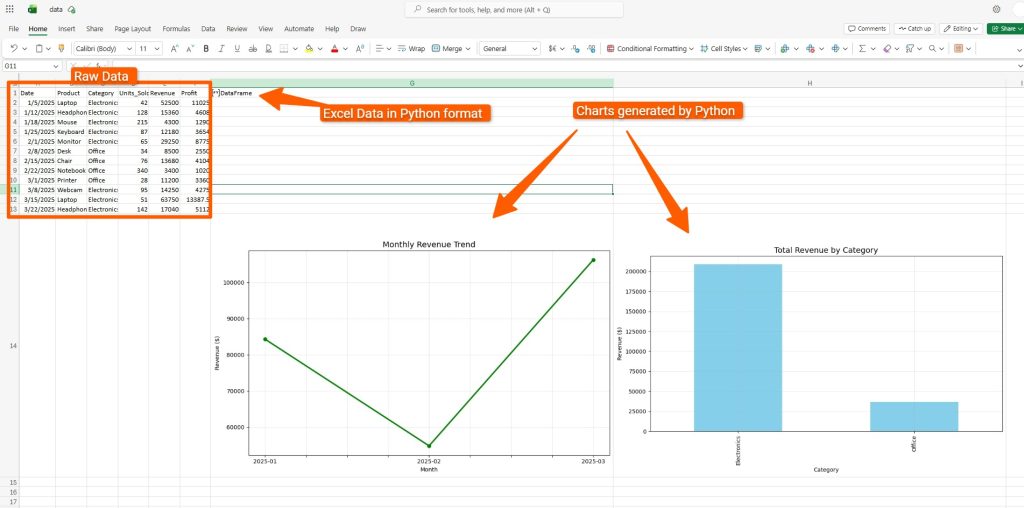
Python Excel Charts

As for AI functionality on the same simple dataset, here are two examples: 

Using a Python library to cluster records into similar segments
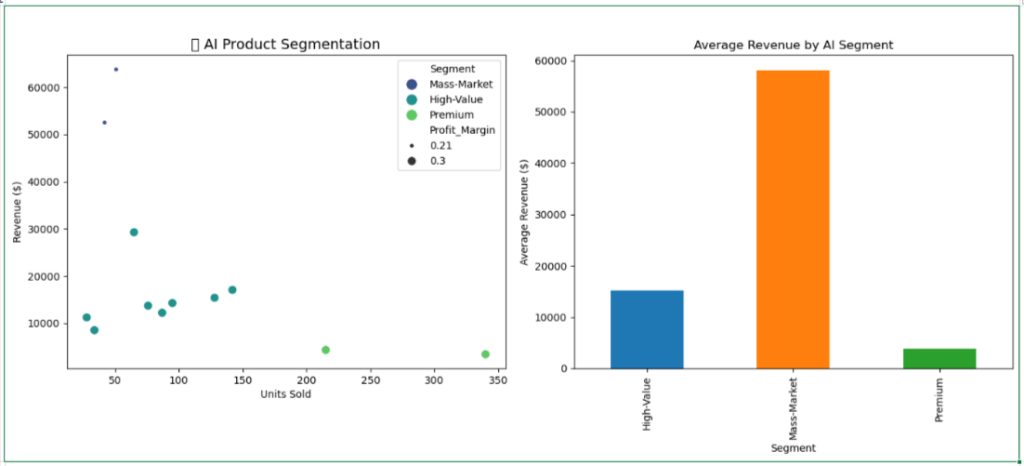
AI Clustering in Excel with Python

Using Python’s built-in linear regression capabilities to predict revenue
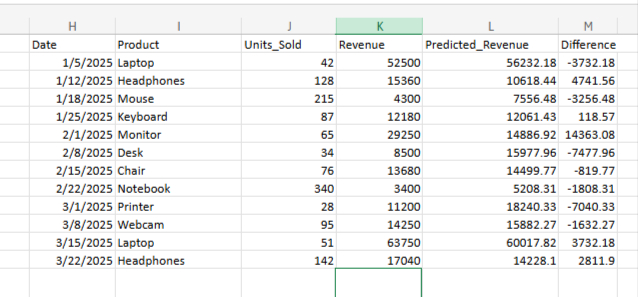
Linear Regression Prediction with Python in Excel

The use cases for Python and AI are immense, although they typically require advanced programming skills. 

We can help you build an AI-enabled workbook that leverages Python’s built-in AI and ML capabilities.

AI Add-ins

A plethora of AI add-ins exist that let you use natural language inside cells. These add-ins mostly appeared before Copilot for Excel, so they feel somewhat extraneous these days. 

For example, numerous.ai, one of the most popular tools, lets you type ChatGPT queries inside an “=AI()” formula in a cell. These days, people just type their queries into the Copilot or Claude chatbox instead. 

Most of these tools use ChatGPT, Claude, or one of the other popular chatbots under the hood anyway, so you might as well go with the originals. 

Using AI in Microsoft Excel code

Excel has a built-in programming language called VBA (Visual Basic for Applications) that lets you create powerful tools, all inside Excel. The language has been around for decades, and it hasn’t changed much since it was released. If you’d like to see the code editor underneath Excel, just hit Alt + F11. 
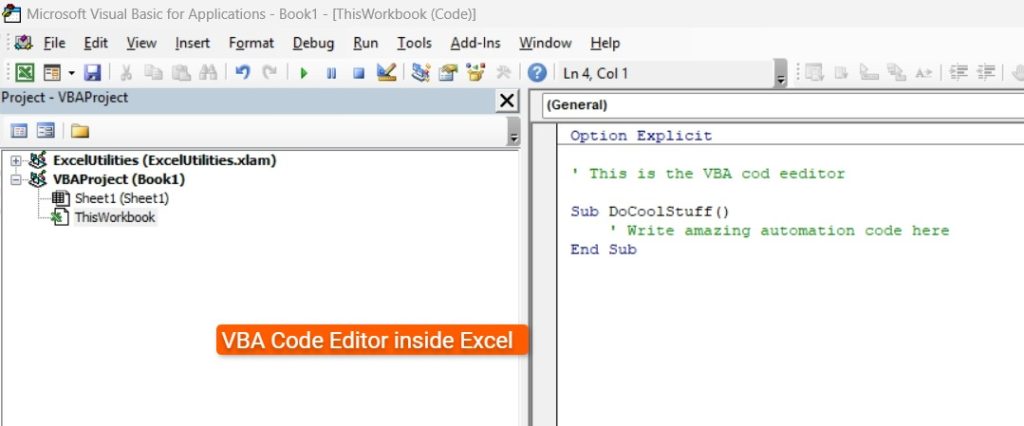
Excel VBA Editor

Through the code editor, you can program your Excel file to call custom AI services on the internet. 

This solution is immensely flexible, and the options are almost unlimited. Just some of the things you could do with this are: 

  • Run AI queries on cell data. 
  • Accept user prompts inside Excel, but alter the output to align with company documents. 
  • Generate images through Excel. 
  • Analyse massive datasets and verify the accuracy of results returned. 
  • Save AI-generated results to a file. 
  • Save chats. 
  • Run sentiment analysis on public comments about your company. 

Despite its sophistication, implementing such a solution is relatively simple if you know how to program in VBA, which we’ve been doing for 30 years. If you’d like to know more about this, reach out to us for more information

Using AI to write Excel VBA code

One of the most popular use cases for generative AI is to generate programming code. Non-programmers are being told by vendors that all they need to do is write a few prompts, and they’ll have working software in no time. 

The truth is a little more sobering. Professional programmers have certainly integrated AI into their workflows, and the code that AI generates is impressive. It’s also often full of errors, some of them critical. 

These are easily picked up and addressed by trained programmers, but are often missed by non-programmers.

The other problem with using AI to generate VBA code is that the existing AI models haven’t been trained extensively on it, meaning they provide more erroneous VBA code than more popular code languages, like Python code. This makes it challenging to get an AI tool to generate reliable Excel VBA code. 

Still, it is indeed a potential use case: Using AI to write VBA code to help you automate your Excel tools. If you’d like more professional VBA code written, or if you’d like us to review your AI-generated VBA code, just send us an email

Advanced AI automations through custom-programmed tools

Another less common yet immensely powerful solution is to integrate Excel with AI tools through a custom-programmed solution. 

For example, we used custom programming to read PDF files with an AI tool, then save the data into Excel workbooks. The tool was created outside of Excel but would read multiple PDF files, extract their content using AI, and then save the data into a predefined Excel file. 

The options on how to integrate AI with Excel through custom tools are endless. 

Where we stand with Excel and AI

The hype surrounding AI has been truly breathtaking. Unfortunately, much of that hype hasn’t materialised, especially when it comes to high-accuracy tasks. 

Arguably, the most significant gains that AI has given the day-to-day worker are: 

  • Better programming tools
  • Better search and research tools

Yes, it’s possible to use AI to query data in a spreadsheet and create dashboards, but the accuracy cannot be guaranteed, and the quality is subpar. 

For more professional results, it’s best to do it yourself or hire a pro. For high-accuracy results regarding financial calculations, AI is more of a risk than a solution. 

Still, the field is constantly evolving, and we continue to monitor it as professional programmers, suggesting solutions to clients wherever we feel the risk is manageable. 

For personal use cases, by all means, use Copilot and Claude. For more sophisticated uses, we recommend using Python for Excel or building a custom AI tool that has guardrails to validate the data it processes. We can help you in both these cases. Just reach out to us for more info

Excel and AI Frequently Asked Questions (FAQs)

Which is better, Microsoft Copilot or Claude for Excel?

Claude for Excel is generally better for power users who want faster responses, stronger formula suggestions, and no OneDrive requirement. Copilot is more convenient for beginners.

Can beginners use AI in Excel without knowing formulas?

Yes. However, a fundamental knowledge of formulas will help you do more with AI for Excel.

What are the biggest risks of using AI with Excel?

The main risks are hallucinations (wrong answers) and over-reliance on AI for important decisions. 

Does Python for Excel require coding experience?

Ideally, yes, although you can also use AI to help you generate Python code. 

 

Office Scripts vs. VBA: Programming Excel for the Web and Desktop

Stylized Excel Logo

Microsoft Excel has long provided the ability for users to write “macros”—pieces of programming code that let people automate both simple and advanced tasks. The official name of these macros is Visual Basic for Application (VBA) because they use Microsoft’s Visual Basic programming language.

VBA macros are extremely powerful, and we’ve used Excel macros and VBA for decades to create enterprise-grade software for accounting, retail, logistics, manufacturing, and dozens of other industries.

One of the drawbacks of Excel macros has been that it couldn’t automate Excel for the Web. Microsoft announced a step forward in this direction by launching a new web-friendly version of Excel VBA called “Office Scripts”.

Office Scripts vs. VBA: Major differences and similarities

The way Office Scripts work is fundamentally different to Excel VBA. Although Office Scripts is unlikely to ever replace VBA, it provides certain features that VBA can’t. Together, VBA and Office Scripts form a powerful combination.

Here are the major differences and similarities between these two powerful technologies:

Programming language

Desktop Excel Macros use the Visual Basic programming language, which tends to be easier for beginner programmers to learn. Office Scripts is based on JavaScript, the most popular programming language in the world, and used on virtually every modern website today.

JavaScript is more complicated to pick up for people without programming experience and is more challenging to debug.

Macro recording

Most casual users will likely use the “Record Macro” option for both desktop and web versions of Excel to create their macros. This Record Macro tool is designed for people who have little to no programming knowledge.

Recording macros is useful for simple office automation but is hopelessly inadequate when it comes to doing anything more advanced. To leverage advanced features of Excel VBA and Office Scripts, a knowledge of programming is essential.

Availability

Office Scripts is available exclusively to users with an Office 365 subscription. Excel VBA can be used by anyone with a valid Excel licence, whether Office 365 or standalone.

Integration

Both Excel VBA and Office Scripts allow for extensive integration between services, but they do it in different ways. Usually, Excel VBA is the best choice for desktop integrations, and Office Scripts is typically better for web integrations, but it all depends on the use case.

Office Scripts automation is achieved through Microsoft’s purpose-built Power Automate tool.

Power Automate lets users create workflows between web-based apps. Microsoft provides several pre-built automations, although these will likely need tweaking based on your use cases.

Integrating Excel VBA code with many other solutions is also possible, even web solutions. In just a few lines of code, Excel on the desktop can integrate with many other tools, both on the desktop and on the web, but this typically requires advanced programming knowledge.

Code that runs on Excel events

Using VBA, it’s possible to create full-scale applications with code that triggers based on Excel events, such as editing a cell or opening a workbook. This means that VBA-powered workbooks can function like first-class desktop applications. The experience is smooth and fast.

Office Scripts offers none of this functionality. To run Office Scripts, users must either click the relevant script button in their spreadsheet, or you have to connect the script to triggers defined in Power Automate.

Power Automate Triggers open up an immense amount of use cases that aren’t possible with Excel VBA, but Office Scripts’s lack of support for events limits that usefulness when using them directly inside a workbook.

Speed

Office Scripts are painfully slow when users run them directly. We created a simple script to update the value of a single cell through a button click and it took several seconds to perform this trivial task.

A similar script in Excel VBA would run in microseconds.

For large-scale processing tasks that need to be run on more than a few rows, Excel VBA is the obvious choice. If the task can be run in the background as part of a web automation, then Office Scripts is also an option.

Referring to other workbooks

Office Scripts can’t refer to other workbooks like VBA can.

In VBA, it’s possible to refer to any workbooks in the code and manipulate them in any way you wish. Office Scripts only let you run the script in the current workbook.

It’s possible to run an Office Script in a different workbook if it’s defined as part of a Power Automate flow, but the structure is completely different and far more complex than in Excel VBA.

If you want to refer to multiple workbooks using Office Scripts, you might want to hire an Excel specialist to help you.

Debugging code, and code readability

VBA provides a fully-fledged development environment that lets developers easily create reusable code for large applications. Office Scripts are limited to single code snippets that can quickly become messy for large projects.

The cumbersome structure of Office Scripts is probably the best clue that Microsoft never intended it to replace VBA, but rather to use it primarily with Power Automate for sophisticated background processing.

Debugging is also far more challenging in Office Scripts because of the tool’s inability to set “breakpoints”—places where programmers can pause the currently executing code to inspect what’s happening before it continues. This feature is what makes VBA one of the easiest languages in the world to program in. Office Scripts doesn’t support this, which is surprising seeing as similar functionality has been created in other online programming tools.

Possibly Microsoft will add this feature in the future. For now, debugging is a task better suited to experienced web developers.

Where Office Scripts shine: Web-based automation with Power Automate

Office Scripts shines as a web automation tool that runs in the background, connecting web-based tools through triggers, to process data. Using Power Automate, businesses can create scripts that do an extensive variety of things, such as:

  • Updating an Excel workbook when a user submits an online form.
  • Updating an Excel workbook when a user receives an email.
  • Automatically running Excel scripts when an Excel file is added to a SharePoint library.
  • Tracking file additions in SharePoint.
  • Connecting Excel with ChatGPT for advanced processing.
  • Scanning receipts added to OneDrive and putting the details in an Excel file.
  • Generating PDFs and sending them for signature.
  • Connecting Gmail with Excel.
  • Connecting Social Media channels to Excel.
  • And many more options.

Microsoft already offers numerous ready-made templates that let you connect well-known web apps. An experienced programmer can then take these templates and turn them into powerful business tools with advanced Office Scripts code, or create new combinations using Office Scripts.

A desktop version of Power Automate also exists, which lets users automate actions on their desktop.

Can you convert existing Excel VBA macro files to web-friendly office script files?

The short is not really, and certainly not at the click of a button.

Converting any existing Excel VBA application into an Office Scripts version would require extensive work from a VBA and Office Scripts programmer.

Many Excel VBA applications depend heavily on events, and Office Scripts’s lack of event functionality means this code will need to be replaced by buttons that users click, or Power Automate automations.

Probably, the most realistic solution to convert an Excel VBA project to Office Scripts would be to create a web version with fewer features that works in tandem with the desktop version, but it depends on your specific use case.

Will Office Scripts replace VBA?

Office Scripts won’t replace VBA, just as VBA won’t do everything that Office Scripts does. The two tools serve different purposes in the current ecosystem and will often work best when used together.

Excel VBA is best for fast processing and smooth apps that run on desktops. Office Scripts is best for web-based automation.

Also, if users absolutely must work on a web version of Excel, Office Scripts fills a gap that now makes that possible to some degree. Office Scripts is also useful for companies that use non-Windows operating systems, such as Linux or MacOS, and it will allow users of these operating systems to automate parts of Excel.

VBA has been used extensively in business applications because it lets businesses create professional desktop applications in a fraction of the time compared to other programming languages. When you know the ins and outs of VBA programming, it’s possible to create applications that look and feel like apps written in advanced other languages.

Expert Excel and Office Scripts development

Eppert Consulting has been building business-grade Excel VBA and Web Applications for over 20 years. Our team of developers is experienced in all the technologies necessary to create a robust desktop or web-based Excel app for you and your team, using either VBA or Office Scripts.

To learn more about our services, contact us today for a no-obligation chat.

How to Combine Macro-Enabled Excel Workbooks with Microsoft Forms

Person working on computer

One of the questions we are commonly asked is whether a Macro-enabled Excel workbook is better than Microsoft Forms for collecting and processing data.

The answer isn’t the same for everyone. In some cases, Microsoft Forms might be better. In others, a macro-enabled Excel Workbook is crucial. Often, a combination of both technologies is the ideal solution, especially for business use cases.

Instead of giving you a definitive Yes or No answer, let us explain what each of these technologies is about so you can decide for yourself which might be best for your particular needs.

Basic definitions — Excel Workbooks, Macro-Enabled, and Microsoft Forms

In its simplest definition, an Excel Workbook is an Excel file made up of spreadsheets. Most people are familiar with this concept.

A macro-enabled workbook is an Excel workbook with computer programming code that runs in the background to automate certain data processing functions. These programming functions are called “Macros”. (Macro is short for “macroinstruction” but we’re not going to get more technical than that.)

Users can record simple macros in Excel, Microsoft Word, Outlook, and various other Microsoft Office products. This functionality alone has turned Office into one of the most powerful software tools on the planet. The breadth of use of macros cannot be overstated.

Although average users can record macros themselves, computer programmers can create macros that turn Excel into a truly enterprise-grade software solution. Macros can serve everything from one-person businesses to multinational corporations of many thousands of employees.

Typical uses for macros include:

  • Automating repetitive data processing functions
  • Speeding up repetitive tasks
  • Breaking down complicated formulas
  • Automatically sending emails
  • Connecting to an external database
  • Performing web-related tasks
  • And thousands of other uses.

Microsoft Forms

That leaves us with Microsoft Forms. This is simply an online tool for collecting information. Microsoft Forms are incredibly easy to create, and the information collected is stored in an Excel spreadsheet.

Forms offer no further functionality, but they do have the benefit that they are accessible online so you can collect information from anyone.

What are the pros of MS Forms versus MS Excel?

Comparing Microsoft Forms to Microsoft Excel is like comparing apples and oranges. They were built for different purposes.

But, as we’ll show you shortly, you can combine Excel and Forms to create a fantastic solution where you get the best of both worlds — forms combined with the macro-enabled power of Excel.

The pros of Microsoft forms are:

  • They are fantastically easy to create. You simply go to forms.office.com and start building a form with all the fields you need.
  • They are available online so that anyone can access them.
  • They have error-checking built into them so that users can type in only the correct type of information (such as dates in a date field, instead of random text).

How to create a Microsoft Form

There are two ways to create a Microsoft Form. They are exactly the same except in the way the form’s results are provided to you.

If you use a free Office 365 account, you can use the following procedure:

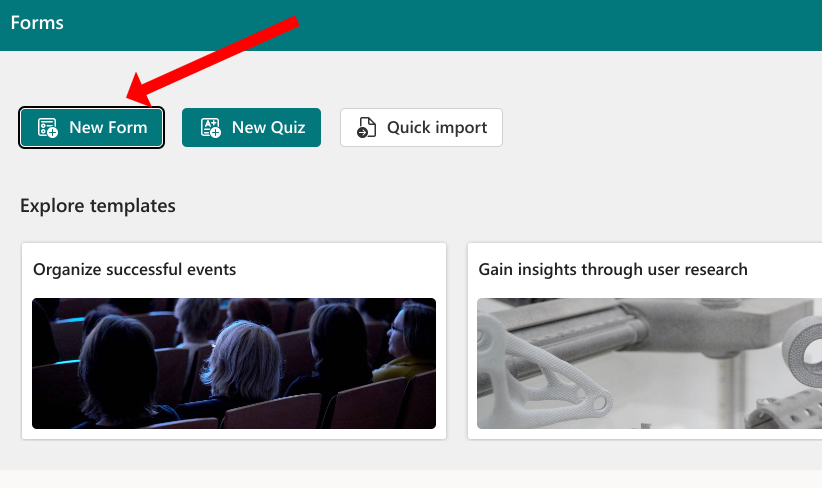
1. Visit forms.office.com and click “New Form”

New Microsoft Form

2. Create the form by clicking “Add New” and then add as many fields as you need. For our example, we added “First Name” and “Last Name”.

CReate MS office form

3. When you are done adding all the fields you need, click “Collect Responses” on the top right. This will give you a link that you can share with people so they can fill in the form. You will be given the option to make the form public, visible only to members of your organisation (if you are using a paid version), or to specific people.

Share Microsoft Office Form

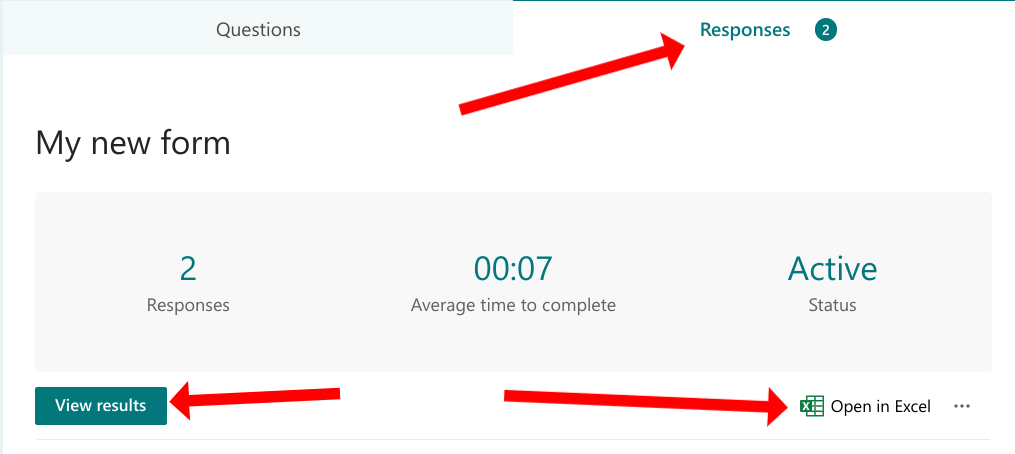
4. After people fill in the form, you will be able to download the responses by clicking on the “Responses” tab and then clicking the “Open in Excel” link on the right.

View Microsoft Form Responses in Excel

If you click “View Results”, you will be taken to a separate screen that shows the results on the web.

The “Open in Excel” option downloads an Excel file with all the results in it. Every time someone fills in the form, you need to download a new file of results and all the results will be in there, even previously downloaded results. This is the primary difference between the free and paid version, which we will explain in a moment. 

At this stage, it is entirely possible to manipulate the results in the downloaded Excel workbook and analyse them using a different macro-enabled workbook. Basically, the macro-enabled workbook would have a button that then processed the data in your downloaded workbook. (We can create this macro-enabled workbook for you if you don’t know how to do it yourself.)

One of the major cons to using this option is that, if you add any formulas to the downloaded Excel file, or even edit it in any way, those edits will be lost when you download the latest results because you will be downloading a different file every time. If you only plan on collecting one set of answers, then this isn’t a problem. But if you want to collect form responses regularly, this quickly becomes a deal-breaker.

We need a solution that provides responses in a single Excel workbook. This is only possible for paid Office 365 accounts. But this solution is the most flexible of all.

How to save Microsoft Forms data into a common Excel file

For paid versions of Office, there is a better way to create a form so that:

  1. You don’t need to manually download results every single time you want to receive the latest information.
  2. Results remain synchronised no matter how many times you download the file and edit the information or add formulas to it.

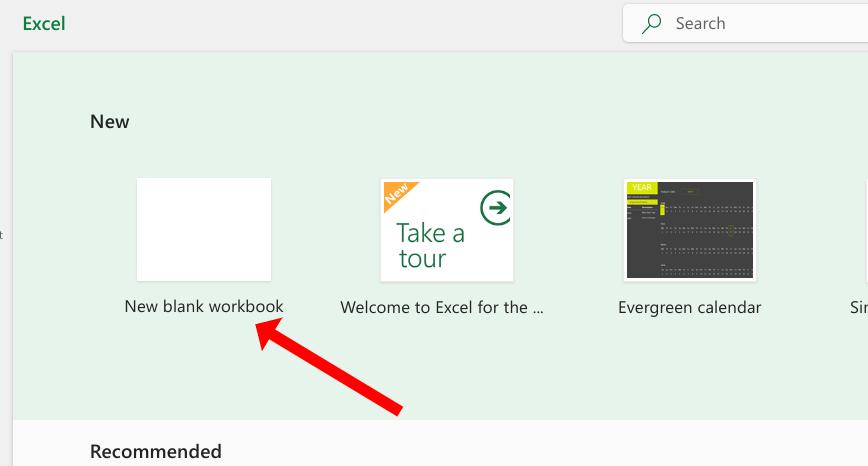
To do this, instead of going to forms.office.com to create your form, go to excel.office.com and create an Excel Spreadsheet. For this example, we will start with a blank workbook, although you could choose whatever type of workbook you want to create.

Create MS form linked to Excel Spreadsheet via Excel Online

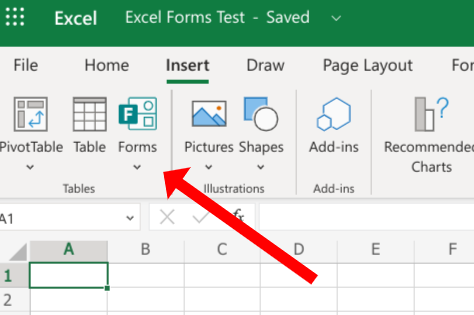
Click “Insert” in the ribbon and then click “Forms -> New Form”.

If you don’t see the “Forms” option, please note that you must be in a paid version of Microsoft Office. This option is not available on the free version.

Click insert form in MS Excel online

From here, the rest of the procedure of creating the Microsoft Form will feel familiar. You create the Microsoft Form as before, and click “Collect Responses” when you’re done to receive a link to share with people whom you want to share the form with.

Test form within Excel

But this is where it changes: When it’s time to collect the form responses, you will notice that there is a cloud symbol next to the “Open in Excel” option. That’s because clicking that icon does not download a separate Excel workbook every time, but rather opens the Excel form you created earlier.

Test form within Excel MS form responses in Excel

Here’s what our online Excel form looks like when we click “Open in Excel”.

MS form responses viewable in Excel

Any formulas you add to this file will be saved along with the file and won’t be lost every time you need to view the latest results.

Additionally, the file will also be available in your OneDrive folder on your desktop so you can simply open it to view the latest results.

Excel Macros with Microsoft Forms

As described previously, you can then have a separate Excel file with a button in it that opens your results file and processes the data with all the power of Excel Macros. This would be similar to the option when using the free version, except that you won’t need to download the file every time you want to get the latest data. The Excel form with the latest responses is already on your computer’s OneDrive folder.

The reason Macros shouldn’t be saved directly in the results file is that it could cause a conflict if someone is inputting data into the form while you are working on it on your computer. But you can certainly add formulas and make other edits in the results file. They will not be lost every time you click “Open in Excel.”

The easiest way to combine Excel macros with Microsoft Forms

We have been creating powerful Excel-enabled Workbooks for businesses for decades. Although it is possible to create macros yourself, there are certain intricacies involved in combining Microsoft Forms with Microsoft Excel to make the solution truly robust.

The intricacies are not complicated, but they are typically things that inexperienced users are not aware of.

The good news is that we have collections of code that already deal with these intricacies so that we don’t even need to charge you for dealing with them, and so can simply build your custom Excel solution on top of that basic code so that you can truly leverage the power of macro-enabled Excel Workbooks and Microsoft Forms.

To learn more about connecting Macro-Enabled Excel Workbooks and Microsoft Forms, contact us today! 

Connecting Excel to SQL Server: Adventures in an Almost Legendary Project

panumas nikhomkhai at Pexels

We were hired to convert a large UK accountancy firm’s many interconnected Excel spreadsheets into a robust SQL Server database project. Part of the project included exporting data from Excel to SQL Server.

The intricacies of doing this were immense.

The London accountancy firm

The accountancy firm is a large, respected company based in London. They manage the accounting of thousands of independent contractors across the UK, doing everything from tax returns to day-to-day payments for them.

They deal with massive amounts of data.

Using Excel as a database was no longer an option

Photo by StellrWeb on Unsplash

Understandably, the company had outgrown its in-house Excel spreadsheets and systems.

We had already created a fairly sophisticated Excel database solution for them which manipulated and processed the incoming and outgoing data efficiently. But the company had reached a level of expansion where there was simply too much data for Excel to deal with speedily and rapidly.

And there were other concerns as well, such as:

  • Portability of the data, should the company wish to move to a different platform in the future.
  • Advanced reporting which was becoming ever more difficult, given the sheer quantity of data they were dealing with.
  • Ease of backups.
  • Maintaining the integrity of the data as the company grew and more staff gained access to raw figures.
  • Security of data.

Excel had been doing a great job until the numbers hit several million records per spreadsheet.

We had already created a database in Excel. Now we needed to take that “database” and put it into an actual database — something like MySQL or SQL Server or Oracle.

The decision to switch from Excel to SQL Server

Data abstract
Photo by fabio on Unsplash

Excel tends to “play better” with Microsoft products, so we were not keen to use MySQL.

Eppert Consulting had previously completed a gargantuan forecasting project for a German company whose preferred database was Oracle. There are several intricacies involved in connecting Excel to Oracle, more so than with SQL Server.

The accountancy firm was comfortable with Microsoft products, and so it was decided that we would connect Excel to SQL Server.

That’s when the work began.

If I were to detail for you every step of the project’s life cycle, this article would end up being a book. The entire process was both fascinating and rewarding.

Excel is a powerful tool, but combined with SQL Server as its back-end data provider, it is without a doubt the most effective tool any company can have in its arsenal. It can do everything from creating quotations to running sophisticated forecasting software which increases sales.

The project, looking back at it, feels now almost legendary in its scope, even though it did not feel this way at each step of the process.

Here are some details of what we did.

The initial data import from Excel to SQL Server

Arrow
Photo by Nick Fewings on Unsplash

Although both Excel and SQL server have built-in tools for importing and exporting data, I would not recommend using these for a project with so much data.

The task is best done with VBA programming.

Once the data has been imported, it well behooves the programmer to spend as much time as is necessary verifying the correctness of that imported data.

This step cannot be undervalued. There is so much potential for minor importing errors which could have snowball effects later on. You will save yourself much debugging time if you verify the data fully and completely at this stage. A fresh set of eyes helps. Excel formulas and some direct VBA programming checks are also useful.

Daily importing and exporting from Excel to SQL Server and vice versa

Once the data has been imported into Excel, it needs to be pulled back into Excel in order to work with it.

Nothing beats Excel’s myriad functions for working with data. The accountancy firm was keen to move the data to SQL Server, but dropping Excel as an accountancy tool was never in question.

There are several ways to regularly export and import from SQL to Excel, and vice versa. The most common one (although we do not recommend it) is to open up a connection to the SQL Server using VBA code, pull the data, close the connection, and keep doing this for each transaction.

This is inefficient.

Increasing Excel’s speed was imperative

Long exposure of cars driving at night, suggesting speed
Photo by Marc-Olivier Jodoin on Unsplash

Speed was a key factor in deciding to move from Excel to SQL server, and constantly opening and closing connections would slow the software down due to the enormous amount of transactions this company was performing a minute.

We recommend pulling the data from SQL Server into a hidden workbook in Excel using VBA programming. Do this when the program first opens up, then periodically refresh the data to maintain consistency.

There are fine details on how this can be done without data conflicts, but that is beyond the scope of this article.

The key thing is to “flatten” the data. Excel is worked with most easily when all the data is on a single sheet. SQL Server is the exact opposite. By the very definition of a relational database, best practices in SQL Server dictate that one must separate the data into tables, and relate them one to the other. (The technical term for this is “normalising” the data.)

These two paradigms are in direct conflict with each other.

Interfacing between Excel and SQL Server

Markus Spiske at Pexels

If you wish to use Excel with SQL Server as a back-end, you will need to provide an interface between the two systems which “flattens” the data so that it is mostly in one sheet in Excel. To send data to SQL Server, you need a reverse system which “normalises” it into separate tables on the way back.

This might seem like quite some programming, and it can be. But once the initial elements are in place, the code can be re-used for all data transfers between Excel and SQL Server.

Excel is the boss in an accountancy firm. It is unlikely that you’ll end up using even a tenth of SQL Server’s many features. When connecting Excel to SQL Server, the programming task is made easier in the long run by doing the majority of work in Excel’s VBA programming language. This makes future debugging easier.

Further Excel integrations

But it didn’t stop there. By the time we had completed the bulk of the Excel to SQL Server integration, the tool had reached a stage of such value that the company requested further modifications to it.

Each of the modifications was small, and took very little time, comparatively, to implement. But looking back at the completed product, I am still amazed at how much we achieved. I am also amazed at how unbelievably flexible Microsoft Excel can be when it comes to connecting and integrating it with other tools and software such as Sage, Adobe Acrobat, Amazon Web Services, etc.

Here are just a handful of the many integrations Eppert Consulting programmed into this mammoth and invaluable piece of Excel accounting software.

Integrating Excel with Outlook

Email
Miguel Á. Padriñán at Pexels

One of the first requests was to integrate Excel with Outlook — preparing a client’s tax return, for example, and then sending the return to them in a PDF format using Outlook.

We did this in the Visual Basic for Applications programming language, of course. Advanced tasks such as these can only be done using Excel’s programming features.

We ended up programming many integrations between Excel and Outlook. Here are some of the features that were required for each or all of those integrations:

  • Correct formatting of the prepared Excel document so it looked professional when exported to PDF.
  • Automatically emailing it to an email address associated with the client (stored in the underlying SQL Server database).
  • Various email templates which could be edited by the client.
  • Email templates automatically selected when clicking the “Send” button, based off options filled in, in the Excel spreadsheet.
  • Bulk emailing of attached financial figures (either in Excel or in PDF format) utilising an underlying data store.
  • A sophisticated document approval process, resulting in a completed document finally being sent out by email once it had been verified and checked at various points.

Connecting Excel to bulk-emailing and SMS software

Hand using mobile phone
JÉSHOOTS at Pexels

The company uses a bulk emailing service, independent of Microsoft Outlook. It also uses a bulk SMS service which requires messages to be uploaded to a third-party company’s website in a specific format.

We programmed a feature to create these messages with one click, formatting the upload-file within Excel itself, using VBA programming code.

Importing banking data into Excel — integration with HSBC Connect, RBS and other financial institutions

Safe deposit boxes
Photo by Tim Evans on Unsplash

One of the most ambitious tasks we had was to import financial transactions from HSBC, Royal Bank of Scotland and other financial institutions into Excel.

Excel also had to export payment data directly to these financial institutions.

Each institution had its specific way of accepting data, as well its own security practices. We programmed several features so that Excel could both receive and send data for thousands of bank accounts, for which this accounting company had a mandate.

Programming Excel to work with Amazon Web Services

The company has produced several hundred-thousand documents over the years. Amazon Web Services was chosen as a secure location to store these documents.

The Excel tool needed a function where it could directly upload generated documents to Amazon Web Services’ Simple Storage servers.

To achieve this, we had to program an external tool in Microsoft’s .Net programming language, because Amazon did not provide an interface for Excel.

Well, we did it, and we also synchronised the data for the uploaded documents with our local SQL Server database so that we always had a local record with which to compare Amazon’s data to ours.

We also maintain separate backups of all documents. The Excel software takes care of placing each copy of the document — backup and original — where it belongs.

Connecting Excel to PHP, MySQL and Microsoft .Net websites

User on tablet
Pixabay at Pexels

Meanwhile, web technology continued to progress at a staggering speed. The accountancy firm’s clients requested more and more that their documents be available to download online.

To do this, it was necessary to create a second online database to store information regarding each user’s documents. We had to program functions to:

  • Notify users of their generated documents.
  • Ensure that only authorised users could download documents.
  • Upload documents into a secure location where they could be downloaded by authenticated users.

We also programmed a feature where clients could approve or disapprove financial transactions using an online platform.

We used a MySQL database to store data because the firm already had a PHP website in place.

This eventually led to a Microsoft .Net website, an additional SQL database, on and on and on…

The project kept growing, each time adding value to the firm, and improving its ROI.

Excel can connect to anything — anything at all!

There was never any dearth of ideas, and the software kept growing. Each new feature requested was a challenge, and I am happy to say that Eppert Consulting rose to meet those challenges.

No matter the request, we found a way to achieve it. This speaks more for Excel’s versatility than to our programming skills. Although an in-depth knowledge of Excel and all its potentials is absolutely necessary to come up with solutions to unusual problems — to think “outside the box.”

4 Ways to Know if an Excel Expert is Really an Expert

Professional man walking in daylight
Photo by bruce mars on Unsplash

To properly define an Excel expert, we must know the meaning of the word expert.

ex·​pert (noun): one with the special skill or knowledge representing mastery of a particular subject — Merriam Webster

“I am a self-proclaimed expert” seems to be the mantra of the modern age. Degrees and doctorates at established universities, coupled with a long track record of competent service in a given industry, were once the criteria for defining expertise. But the emergence of ambiguous fields of expertise such as Search Engine Optimization, User Experience Studies, and Social Media Analysis has blurred the meaning of the word “expert.”

Excel is a little like that. There is no university which offers a degree on “Excel Expertise.” But there are ways to tell if the Excel expert you’re about to hire really is an expert or just a self-proclaimed guru.

1. Can the purported Excel expert program in VBA-Excel’s built-in computer programming language?

Programming code on computer screen
luis gomes at Pexels

If he cannot, he is immediately not an expert. There is no need to read any further.

“VBA” stands for “Visual Basic for Applications.” It is Microsoft Excel’s “hidden” programming language. Its power and potential for solving everyday business problems with Excel cannot be understated. Professional and competent use of this feature can turn any mediocre Excel workbook into a workhorse of dazzling efficiency.

All of the programming language’s possibilities are impossible to enumerate here. Take a look at some of our customised business tools for Excel to get only an inkling of what can be done with Excel programming.

And that’s just scratching the surface.

A true Excel expert doesn’t merely dabble in Excel’s programming language. He is a master at it.

The more complex your project’s needs are, the more VBA programming will be required as a skill.

2. Can the expert demonstrate his knowledge of Excel functions and formulas quickly and easily?

Magnifying glass on maths formula
Ian Panelo at Pexels

An Excel specialist who does not have an absolute and total command of the majority of Excel’s built-in functions and formulas has no right to call himself an expert.

This one is easy to spot, even if you don’t know the formulas yourself, because a true expert should also be able to explain the formulas at a basic level to you, and in a way you can understand.

Ask questions about the potential project. Have him discuss with you how he would solve certain problems regarding the workbook. People who want only to dazzle you might leave you feeling more confused after such a conversation. A true expert will leave you feeling enlightened.

The true Excel expert knows his formulas and can explain them clearly when asked about them.

3. Are his workbooks visually appealing as well as functionally correct?

graphs on computer screen
Photo by Luke Chesser on Unsplash

Excel programming and Excel functions are the guts of the vehicle–the engine, the transmission system.

When a person first starts learning about Excel, often they get embroiled in the potential of these formulas. Their workbooks become overly complex. They sometimes want to try every single formula merely because it exists.

Your true Excel expert has been through this phase early in his career. He has fiddled with the engine, taken out his spanner and wire-cutters and pliers and toyed with everything from the spark plugs to the interior light. He knows how the car’s internals work through and through, and knows what is important and what is not.

After that, he can get into presentation.

No one wants to drive down the road in a sports car which looks like a jalopy.

The true Excel specialist will know how to make the final workbook shine. He will make it look good when it’s printed. The input cells will be easy to see. The cells with formulas in them will be protected so that they are not mistakenly overwritten.

Design is not something done as an afterthought. It is best done during the workbook’s creation. And if your Excel pro truly knows what he’s doing, the final design will be clean and simple, yet professional.

4. Does he have knowledge and experience in features seemingly unrelated to Excel?

Chain
Joey Kyber at Pexels

Too many people consider Excel a tool found only in the accounting department, or in a stock broker’s arsenal.

Additionally, some people think that Excel can work only with Excel itself. In truth, Excel can work with almost all tools and software on your computer as well as on the internet.

A knowledge of Excel’s built-in programming technology is required for this. It opens vistas wide and large on Excel’s potential for small and large businesses.

At Eppert Consulting, we have programmed Excel tools which connect and work with Amazon Web Services, Dropbox, Google Maps, Microsoft Word, Adobe Acrobat Reader, Microsoft Outlook, Microsoft Access Databases, SQL and Oracle databases, and many, many other services and software. We have programmed tools which encompass PDF document manipulation, web uploads and downloads, image processing, the works.

If your expert is truly an expert, he has worked with a multitude of external services which enhance and accentuate Excel’s inherent features.

The scope, truly, is limitless.

Summary of how to choose an Excel expert for your project

Summary on paper
Photo by Glenn Carstens-Peters on Unsplash

No Excel specialist can claim expertise in Excel without an in-depth knowledge of Excel’s built-in programming language. Lack of its use is the difference between “good workbooks” and “spectacular workbooks.”

If he does not show a fluidity of understanding of Excel’s many functions, he is no expert. A true expert in Excel has such an in-depth knowledge of the subject that using it is a piece of cake for him.

A veritable Excel expert knows how to present his Excel projects. He is familiar enough with the inner working of Excel to have enough time left over to make your project also look sleek and spectacular. And the very best Excel experts do this all within budget.

Excel is not an island, and the truly competent Excel professional will know how to interlink Excel with other software and tools so that they work together. This way, he can provide a suite of functions which improve and facilitate complex tasks within your business.

Sure, there are also the obvious aspects of determining if someone really is an expert at something: Does he have good references? Does he have a wide and varied number of clients? Does his work speak for itself?

But these are things which one must determine with any business, not only Excel specialists. The above 1 – 4 are specific to Excel, and anyone claiming to be an Excel expert must pass with flying colours on each and every one of these points.

If you were to run Eppert Consulting’s skills and résumé  through the above 1 – 4, I would hope you found us to be just the right Excel experts you needed for your next project.

How to Create a Forecasting Tool in Excel That Actually Works

Laptops on desk and people writing on paper.
Photo courtesy of Unsplash

Theoretically, Excel contains built-in tools for creating forecasts. Unfortunately, the real world is a little different.

No, it’s a lot different.

I say this as a professional who has provided Excel services since 1996, and created dozens of forecasting tools–both complex and simple–for a multitude of clients, spanning a wide variety of industries.

I am the first to laud how vital Excel is for any business, but on the subject of business forecasting tools and financial planning tools, I am the last to recommend relying entirely on its built-in functions.

If you really want an Excel forecasting tool that puts your business on the speed highway to success, you have to piece one together yourself using a combination of Excel’s features.

1. Raw Data is required for forecasting in Excel

numbers in spreadsheet
Photo by Mika Baumeister on Unsplash

First and foremost, you need raw data–the numbers, the dates, how much income was made, how many sales were made, how many leads the company obtained in a set period of time, etc.

Forecasting is not only about money in, it’s also about how many deals are in the pipeline, how many quotes have gone out in the last week or month. Good Excel forecasting is about percentages of deals that were closed compared to the number of quotes that went out. It’s about how much promotion went out, and what kind. How much internet advertising was done? How much offline marketing was done?

Data, data, data!

“We are moving slowly into an era where big data is the starting point, not the end.” – Pearl Zhu, author of the “Digital Master” book series. (source)

2. Use predictions when forecasting in Excel

graphs on computer screen
Photo by Luke Chesser on Unsplash

Technically speaking, this also falls under Raw Data, but it is not data from the real world as such. It is predicted data.

The problem with Excel’s built-in forecasting capabilities is that they are far too automated. Microsoft doesn’t know your business. You know your business.

Just as you had a sheet which accepted all the raw data for your business in the last months or years, now you need a corollary sheet that will accept predictive data. This will most likely be in the form of percentages, for example, “We estimate that sales in Department X will increase by 10 percent” or “Promotional costs will go up by X amount in the next quarter, cutting profits by Y.”

The predictions are as varied as there are different types of businesses in the world. They’re up to you and your team to establish.

It can get pretty intricate. But sometimes it looks more complex than it really is. The trick is to establish what forecasting data is important and what isn’t.

It’s too easy to get carried away in Excel, buried underneath endless reams of raw data. Always try err in the direction of simplification, not more complexity. Pick the key data first, and build on from there as your tool becomes more involved.

3. Excel forecasting in action: Formulas

Pen pointing at charts on paper
Photo by Lukas from Pexels

It is impossible to list out every single formula that would be of use to you in connecting the raw data with the predictions, resulting in the actual forecasting data.

Excel has over 475 formulas in its functions library. (I think I’ve used every single one of them at least once, to be honest.) It’s impossible for anyone to know them all, unless they work with Excel full-time.

The VLOOKUP function is invaluable.

Try and avoid overly complex or “black box” functions. It is important that you, the business owner, know why and how a computed value exists on the sheet.

This part is really easier than it might initially look. It does take someone with a fair amount of experience in Excel to pull it off. Like art, you have to know how to do the complex things before simplifying them, or dropping them entirely. I could tell you that all you needed was a combination of the SUM, SUMIF, COUNT and MATCH formulas to get a good forecast.

But it’s a little more involved than that.

The key thing to know is: Formulas will take you from the Raw Data and Predicted Data to the Final Forecast in Excel.

Here are some tips when using formulas, based off what we see too often here at Eppert Consulting, when improving on existing Excel Workbooks:

  • Separate the formulas! Don’t try do it all in one long, endless formula. It gets too confusing. Rather split the formula across several columns to make debugging the formula easier in future.
  • Err in the direction of simplicity.
  • If you have too much data and the workbook becomes too slow, consider using the INDIRECT formula. This is an advanced subject and should be used with caution.

4. The charts

charts and keyboard
PhotoMIX Ltd. at Pexels

Lastly, you will want to add some charts to the sheet. Like everything in Excel, there’s the quick and easy way to do this, and then the intricate, exquisite way.

One really does need in-depth knowledge to make the final presentation something to write home about.

But Excel has also been designed for people who are not experts at it, and one can go a long way with its built-in wizards and tools to create great-looking charts and graphs to present at a meeting or to a potential client.

5. Other tips and tricks for forecasting in Excel

people sitting with computers at table
fauxels at Pexels

When forecasting in Excel, it’s easiest if you group your articles and apply predictions to each group, rather than applying those predictions to everything in bulk.

Another way to forecast is what we call the “top down” approach. This is more of a “Production Target” approach. You enter the raw data. Then, instead of typing in predictions, you type in a target for each group, such as “An increase of 10 percent in sales next year.”

Then you work backwards, working out what is needed in the various sub-departments and zones to achieve that goal.

There are many ways to skin this cat called Excel. It really is a fascinating piece of software with endless potential.

Making sense of data is our business

We have extensive experience in creating Excel forecasting tools. The most complex tool we created covers every phase of forecasting from acquisition to sale for a multi-million-Euro-per-annum retail corporation in the clothing industry.

The raw data can get complicated very quickly, even for small companies. In a sense, it’s even worse for small companies, because there are less people to take the load off and spend hours analyzing that data. If you’re a one-man show, likely you would just give up on forecasting altogether and simply go with your gut. Unfortunately, this is perilous in the long-term.

Making sense of data is our business–we work day in and day out with data and know how to spot what is important and what isn’t. We can usually figure out the best way to arrange the underlying raw data in an Excel workbook so that the resultant Excel forecasting becomes easier to do.

If you need help with any phase of your forecasting tool, give us a call, or send us a mail using the form below. We would be happy to help you.

Contact Us


Create Quotes in Excel Which Close the Deal

Man preparing a quote manually
Photo by Helloquence on Unsplash

There is no better software for creating quotes than Microsoft Excel. Yet the intricacies of Excel can be daunting for anyone not familiar with the program.

“It’s all about the presentation.”

It’s the simplest rule in Marketing. If you don’t “wow” your potential client, they’ll go somewhere else. And wowing the potential buyer has little to do with price.

In a study conducted in 2012, Business Weekly reported that “New research suggests that low prices can backfire for retailers since consumers sometimes see cheap prices as a sign of a cheap product.”

No, you wow your client with great value for money, unbeatable quality, and superior service. But how do you even get them to sit up and listen, to actually look at your proposal?

“New research suggests that low prices can backfire for retailers since consumers sometimes see cheap prices as a sign of a cheap product.”–Business Weekly

Too often we hear from clients that their in-house CRM or Accounting software–everything from Sage to massive SAP applications–simply doesn’t cut the grade when it comes to creating professional quotes which bring the deal home.

Either the proposal it creates looks “boring” or bland, or it simply isn’t customizable enough to make it look unique. 

The other rule of Marketing: You have to stand out

Professional clients want value for money, not necessarily cheapness. To close the deal, you need to stand out from the competition with your proposal.

Your only choice is to spend hours upon hours putting together a quotation for that “One Big Client,” neglecting all the other quotes that are being demanded of you–quotes which themselves also need to be professionally done.

It’s the endless conundrum of running a successful, expanding business.

Stressed out woman sitting at laptop
Photo by energepic.com from Pexels

Creating an Excel Quoting Tool is the way to do it

We have been creating customized Excel solutions for over twenty years–everything from Day Trader Excel Tools to an Excel Payroll Tool to, yes, a sophisticated and easy-to-use Excel Quoting Tool. Nothing comes close, competitively, to what Excel can do for a business. It is a phenomenal product which only keeps getting better.

Like all “good software” out there, Excel’s true potential is only really seen when one knows how to use every part of it. And that task can be daunting.

Here at Eppert Consulting, we are constantly amazed to discover that even some accountants don’t know all of Excel’s potential tricks and tools.

An Excel Quoting Tool is the easiest thing in the world to create–if you know Excel. It can be done in only a matter of hours for a simple tool which would generate professional quotes in seconds. The quotes would be designed to your specifications, then exported to PDF or Microsoft Word.

Steps to create an Excel Quoting Tool

1. Make it easy to input data

Excel has inbuilt tools to prevent user error. The trick to fast and professional quoting in Excel is to make the user-input almost automatic.

You can lock cells so that users don’t mistakenly overwrite key formulas and values.

You can colour-code input sections–locked cells one colour (such as grey), input cells another colour (such as light green).

One spectacular feature of Excel is conditional formatting. It’s really quite difficult to overpraise this feature, especially in quoting tools. You can have a hidden sheet which compares this quote to older quotes or, say, to a median value. If you’re quoting too high or too low, the cell could suddenly turn red to warn you.

The goal is to think as little as possible when crunching the numbers, and reduce human error completely. The ideal scene is to type in your values, click a button and export to a gorgeous PDF which impresses the heck out of your potential buyer, and knocks over all of the competition

If you really want to get sophisticated, you could design a user-form to capture your data and insert it into an underlying sheet. But this is really getting advanced. (We can help you here, if you wish.)

Laptop with Excel-style dashboard open on screen

2. Design a spectacular quote template

This is where you wow your potential client. The layout of this document needs to be visually appealing. It needs to catch the eye, direct it, impress.

It can all be done in Excel.

This is not the same sheet into which you input your values!

A lot of people make this mistake. Ideally, your input screen has no fancy bells and whistles. It contains boxes (cells) with easy-to-read labels, and clear instructions if necessary. It also contains conditional formatting and even built-in Data Validation to verify the data.

The input screen is the inner workings of the vehicle. The final quote, the PDF you receive after clicking the button called “Create Quote,” is the vehicle’s body. And you want that body to be a sports car.

Sports car

3. Lastly, use VBA code to make it sing and dance

“VBA” stands for “Visual Basic for Applications.”

Visual Basic is a programming language built right into Excel, the “Application.” You can view this programming language in any Excel file by pressing Alt + F11 together on your keyboard.

This is an advanced subject, and it’s really what makes Excel stand out above all other similar tools out there.

You can do almost anything with Excel VBA.

For example, using VBA you could:

  • Store all your past quotes in a database.
  • Search for old quotes by client, date, cost, subject, etc., and import them into a new quote.
  • Automate much of the number crunching.
  • Have the code manipulate the final PDF’s look in tiny ways which aren’t possible with Excel alone.
  • Import quoting details from external software such as Sage, Salesforce, or whatever software you are using in your company.

This is really where Eppert Consulting shines. I say that with no conceit or lack of humility. I say it merely as a fact. This is our forte: Creating Excel tools that go beyond the usual, beyond the norm, using Excel VBA coupled with Excel formulas and beautiful templates, which are a piece of cake to use.

Anyone can “Record a Macro,” but to transform Excel from a mere Volkswagen Beetle into an Audi RS7, you have to know how to program.

Summary

Still, even without VBA or a Macro, the simplicity of the steps is:

  • Input the data in one sheet, replete with locked cells, conditional formatting, data validation and all the usual built-in Excel tools.
  • Suck in the data using formulas into another presentation sheet which you can then save as a PDF.

If you’re looking for more advanced features, like VBA programming, you can give us a call or send us an email using the form below so we can help you.

Contact us