

Can AI replace the need for Excel expertise, or has the hype gone overboard?
The early hype around AI and Excel promoted AI as a tool that could solve anything and everything. Three years later, the truth is more sobering. AI can be a powerful assistant, but it’s far from the be-all and end-all of solutions.
Unfortunately, the result of that initial hype machine is that the market is now flooded with dozens of AI tools and plugins, leaving consumers confused about which work best, if at all.
As far as Excel goes, Microsoft 365 Copilot has become the dominant solution, while scattered third-party solutions have mostly disappeared or are only used in niche cases.
While Copilot is far from as revolutionary as the hype made us believe, it does reduce some heavy lifting when used properly. Even more useful, in our opinion, is Python for Excel, a lesser-known AI tool that offers far more reliability than Copilot and other chatbots.
In this article, we’re going to touch on the actual use cases of AI in Excel, where it works, where it doesn’t, and what to be aware of when using it.
A brief history of AI in Excel
It wasn’t long after OpenAI released ChatGPT that we started seeing AI tools for Microsoft Excel. The first iteration of tools was formula-based, using a formula like “=GPT()” or “=AI()” where you could provide a text prompt inside a cell to get AI to perform some task.
Realistically, such plugins did little to save time.
The next breakthrough came when Microsoft announced Python for Excel. Python is a powerful programming language that’s used extensively by researchers and data scientists to analyse huge datasets. It has built-in language processing and machine learning capabilities that either don’t exist in Excel or are far more efficient in Python. However, not everyone’s a Python programmer. This use case of AI in Excel is somewhat specialised, and not what most people think of when discussing “Excel and AI.”
While no official numbers exist, we can make an educated guess that Copilot for Excel is the most popular tool because it’s already integrated into Excel. However, this tool becomes less useful the more complex your Excel needs become.
Understanding AI’s mathematical limitations
Before diving into the tools themselves, it’s important to understand AI’s inherent limitations.
Artificial Intelligence as a field existed long before ChatGPT. NASA defines AI as “computer systems that can perform complex tasks normally done by human reasoning, decision making, creating, etc.” Many Excel tools, especially sophisticated ones such as a sales forecasting tool, could also be considered AI because they make decisions and handle complex tasks. The same might be said about a complex workflow automation tool.
The banking industry has used artificial intelligence and machine learning (ML) tools since the 1980s, especially in the area of credit scoring. These tools are highly capable mathematically, but they’re built on entirely different architecture than the current wave of AI.
The new wave of AI is called “Generative AI,” and some AI experts don’t even consider it part of the AI field at all. At its core, generative AI predicts patterns of text. It does this by ingesting huge quantities of textual data, converting that data into numbers, and then establishing statistical patterns about which words are most likely to follow which other words.
While outputting the next-most likely word isn’t an especially incredible feat in itself, being able to output the next-most likely group of words and paragraphs means that generative AI can provide lengthy answers that mostly make sense. This is important because generative AI is a text-only tool. It doesn’t have any underlying mathematical computation abilities.
Most people are surprised to hear that, but it’s 100% true. In a traditional computer, mathematics is performed in a special part of the processor called the Arithmetic Logic Unit (ALU). These units are physically incapable of providing an incorrect answer to “1 + 1” because they’re dealing with the digit “1” and the operator “+”, which are programmed to work together in the ALU.
When ChatGPT and Copilot see “1 + 1”, they are incapable of treating each of the separate characters as digits or operators. Their underlying architecture only handles text. If you train an AI on enough sequences of “1 + 1 = 3”, it will eventually output “3” as the logical follow-on to “1 + 1”.
This simply can’t happen when working with ALUs, which deal directly with digits.
It’s for this reason that generative AI is more widely used by consumers than in mission-critical contexts such as the medical and finance sectors.
Because Excel is a mathematical tool, how is it possible to use AI effectively in Excel?
Well, the simple answer is that it’s not entirely accurate. For solutions that require high accuracy, AI is less useful than most people think.
However, keep in mind that Excel itself does most of the mathematical calculations. AI can still help put formulas together, create charts, and analyse data—to a limited degree.
Let’s take a look at some of the AI tools you can use with Excel.
Microsoft Copilot
While Microsoft Copilot isn’t necessarily the best option for using AI with Excel, it’s the one that’s available by default for Microsoft 365 subscribers.
The shortcut to start using it is available from the Excel Ribbon for anyone with a Microsoft 365 Subscription.
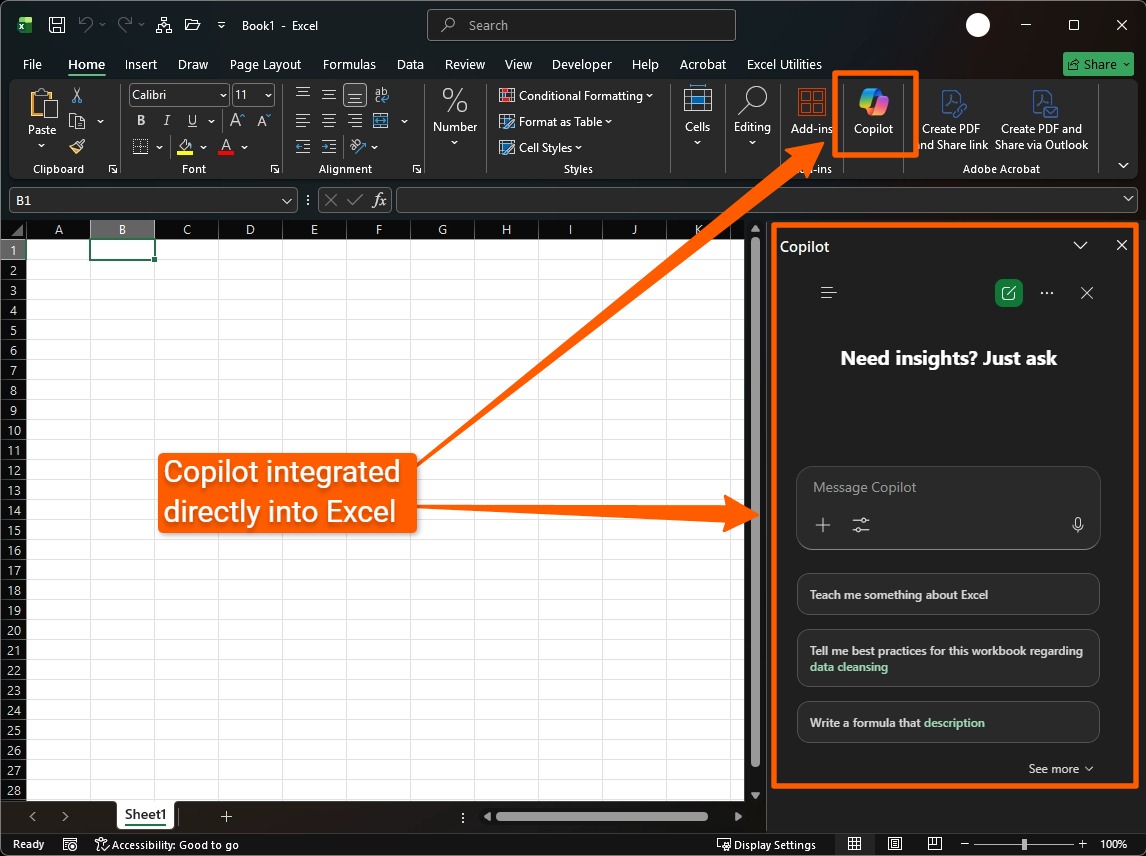
After clicking it, you’ll see a familiar chat interface where you can ask Copilot questions about Excel in general, or about the workbook you’re currently working on.
Important: No matter what task you’re asking Copilot or any other AI to do, you must verify the results because AI is known to hallucinate. For low-risk tasks, this isn’t so important, but it’s vital for critical data, such as customer records or financial information. If accuracy is important in your data, we strongly recommend getting a custom Excel tool developed that can do most of the tasks we describe below, and with far more accuracy.
Before getting started
Copilot can only edit Workbooks saved to the cloud in OneDrive, and AutoSave must also be turned on for it to work. For some businesses, this might result in privacy issues, in which case they’d have to use an alternative service instead of Microsoft Copilot.
Another problem with AutoSave is that it prevents users from experimenting with formulas because all changes are saved immediately to the cloud.
If you still have trouble accessing Copilot after saving your workbook in OneDrive and enabling AutoSave, you can open the file in OneDrive Online and edit it there.
If that isn’t feasible, then consider using one of the other AI options, such as Claude for Excel, which we discuss below.
Data cleaning with Copilot in Excel
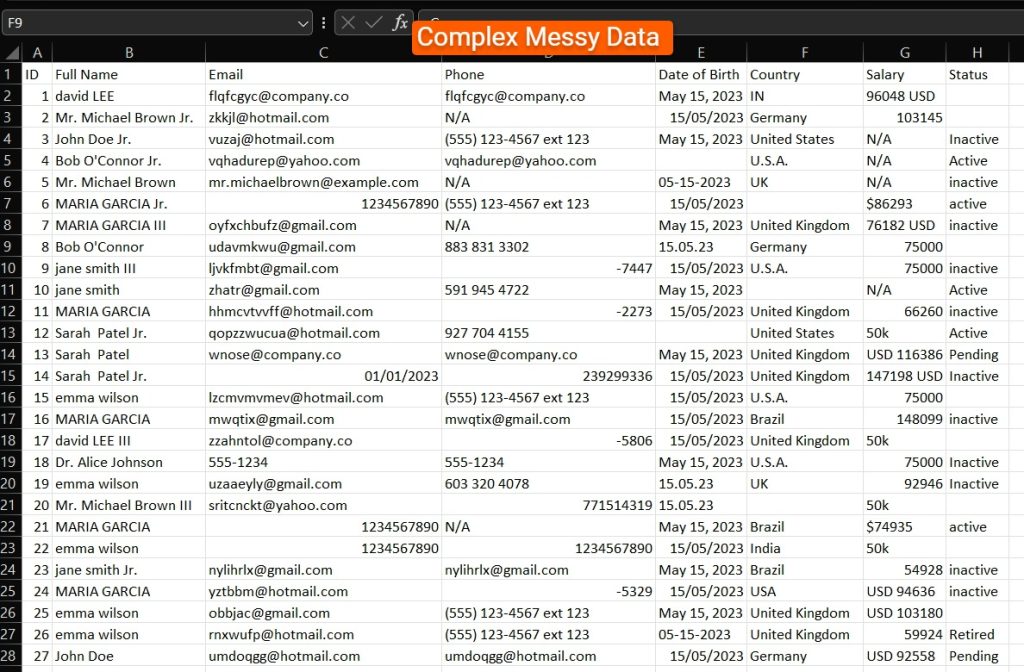
Often, data in Excel files or databases isn’t stored accurately, such as when telephone numbers are stored in a column for emails, or when a person’s last name is entered into the first name column. This might seem unimportant because one can visually see any errors. However, it causes many problems when you need to automate tasks, such as for creating bulk mailing envelopes or automating the sending of emails and SMSes to customers.
In the example below, we have a messy Excel spreadsheet with precisely these kinds of errors in it.
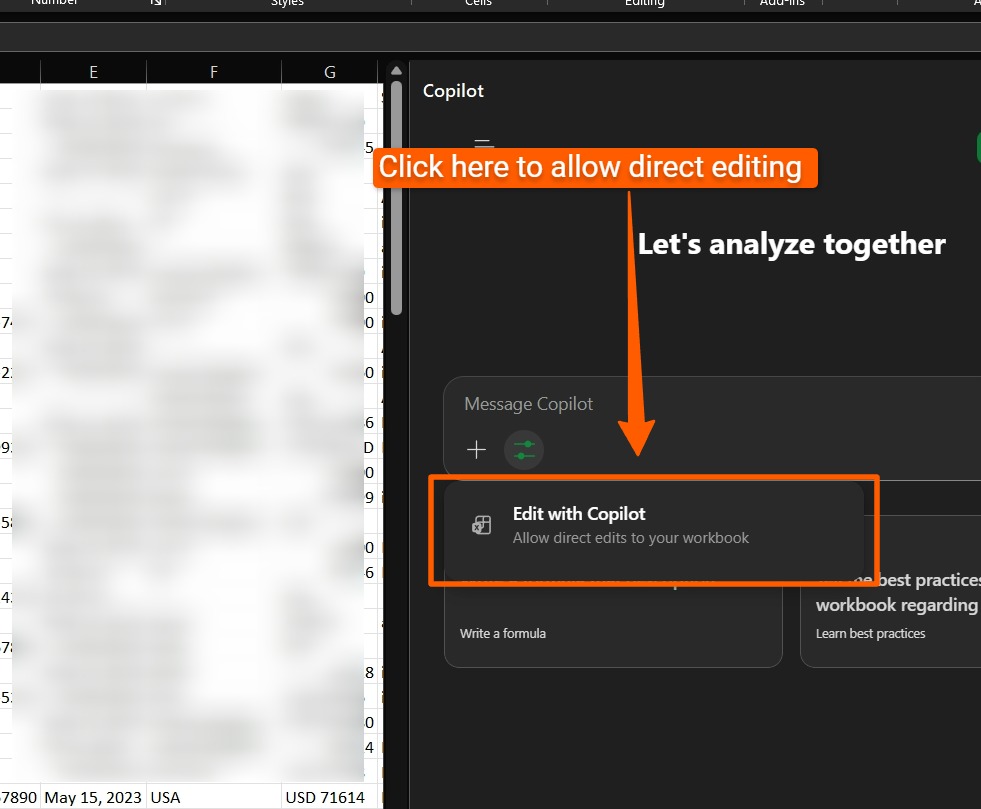
First, we need to ensure Copilot can edit the spreadsheet directly by toggling that option in the interface, as shown below.
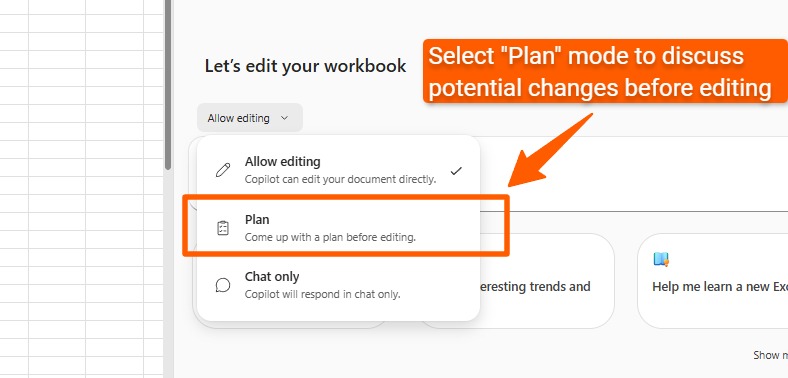
Alternatively, you can also select “Plan” mode, which lets you discuss changes to the sheet before Copilot goes ahead with them.
After prompting, Copilot might ask some clarifying questions, especially if the data is particularly messy, as ours was. You might need to prompt it again to ensure it completes the job thoroughly.
Ideally, you’d verify the cleaned data manually or with a custom macro (which we can help you program).
Analysing trends
One of the earliest use cases for AI and Excel was analysing trends. This was possible even before Copilot for Excel. You could simply upload the spreadsheet to a service like ChatGPT or Claude and ask it to analyse your data. Now, it’s available inside Excel itself through Copilot.
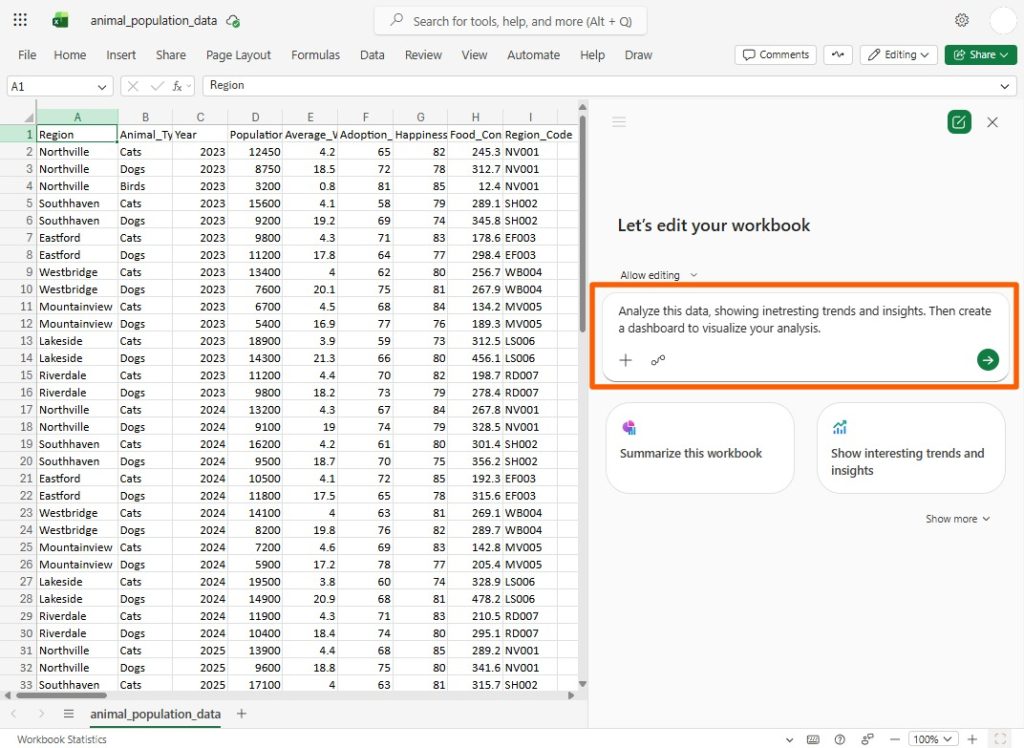
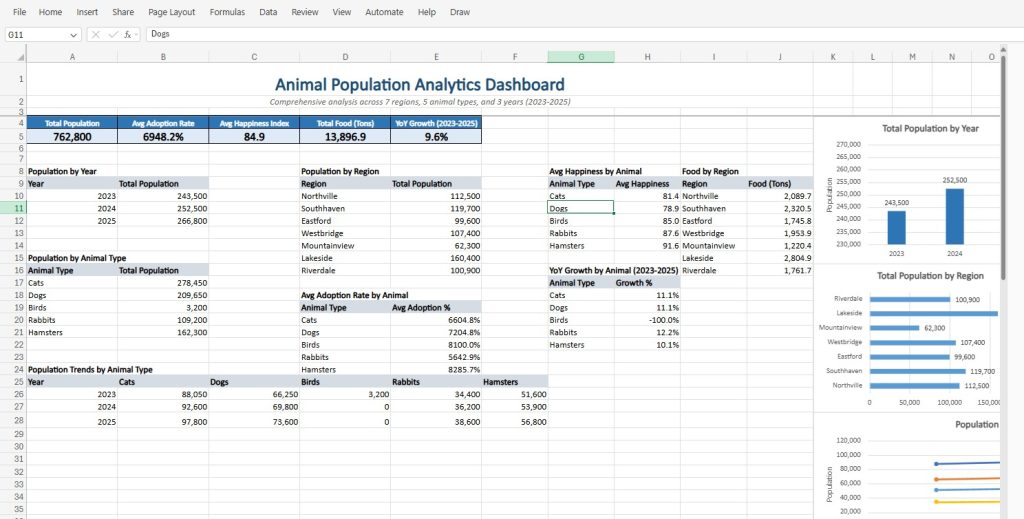
In addition to asking Copilot to analyse the data inside a workbook, you can take it a step further and get it to design an entire dashboard based on the analysis, as we do below.
The dashboard it created for us was far from boardroom-level quality and looked rather amateurish, to be quite honest. Still, for people who have no idea at all how to use Excel, it provides a decent springboard to get you started with charts and summary tables. However, for more sophisticated, easy-to-read dashboards, we’d recommend using good old-fashioned pivot charts, or calling in an expert to help.
Dashboards don’t take a long time to create for a pro, and the quality between that and what AI creates might be the difference between a sale and no sale, if you’re using the dashboard in a sales presentation.
Creating complex formulas
Many websites like to brag about AI’s ability to create highly complex formulas. As Excel experts who’ve been creating Excel solutions for over 30 years, we can say unequivocally that “creating complex formulas” is one of the biggest mistakes people make when using Excel. The essence of a great Excel workbook is to do complex things with the simplest possible formulas.
Still, if you’re a fan of miles-long formulas in a single cell, Copilot can certainly help you create those. If the formula is incorrect, then fixing it becomes far more challenging. Ideally, you’d split the formula into multiple columns to simplify each part.
Indeed, that’s a far better use for Copilot in Excel: Asking it to simplify an immensely complex formula.
General Queries
You can also ask Copilot general questions that don’t have anything to do with Excel, or ask it about the file you’re working on.
Agent Mode in Copilot
Microsoft recently released an “Agent Mode” for Copilot, where you provide instructions about what kind of workbook you want to create, and Copilot takes off to do all the work for you. As with all “Agent Mode” offerings in the wild today, the results can be surprising. In some cases, it might save you time. In all cases we’ve seen, you’ll certainly need to tweak the final workbook to make it work the way you intended it to.
If you need help with that, send us an email.
Claude for Excel
Claude for Excel is an excellent alternative to Copilot for Excel, and many users prefer it over Copilot. The general consensus is that Copilot is acceptable for simple tasks, while Claude for Excel is better for Power Users.
One major advantage of Claude for Excel is that you don’t have to save files in OneDrive to use it. You also don’t need to enable AutoSave.
Some of the other benefits that users report when using Claude for Excel are:
- Stronger at Power Query
- Faster responses
- Multiple formula options in responses
- Better with complex or multi-sheet models
Claude’s response time is significantly faster than Copilot, with answers appearing within one or two seconds. Claude also provides more formula options, which is great if you want to keep your workbook neat and maintainable.
Copilot doesn’t exist inside the Power Query M Formula Language interface, which strongly suggests that Copilot was indeed intended as a tool for general users.
Claude’s answers also tend to be clearer and easier to follow than Copilot’s.
Excel and the Python programming language
Python is a powerful programming language that’s used extensively in traditional AI and ML tasks. It provides powerful code libraries that can train and deploy AI/ML models, carry out highly performant mathematical calculations on massive datasets, clean data efficiently, and execute other advanced research functions.
In late 2024, Microsoft introduced Python for Excel, where you can type Python code directly into an Excel cell. The code then runs on Microsoft’s cloud servers, allowing you to bring the power of Python directly into Excel.
Using Python for Excel, you can reference Excel data directly, then call advanced Python functions on this data. For example, you could use Python in Excel to:
- Perform advanced data analysis.
- Run statistical analysis and machine learning tasks.
- Create advanced visualisations.
- Define reusable Python functions that you can call in other cells.
- Output results into a table or grid.
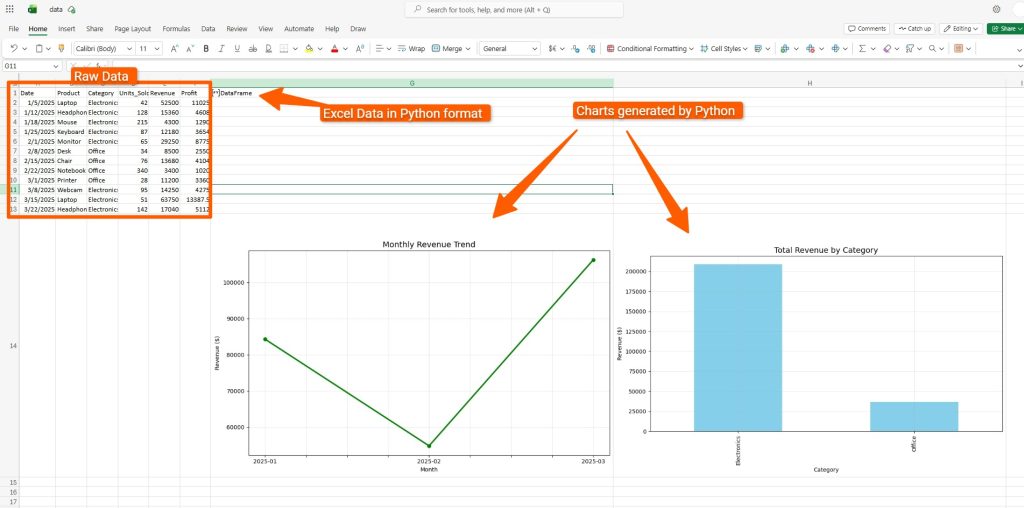
Here’s a screenshot of using Python to create charts in Excel:
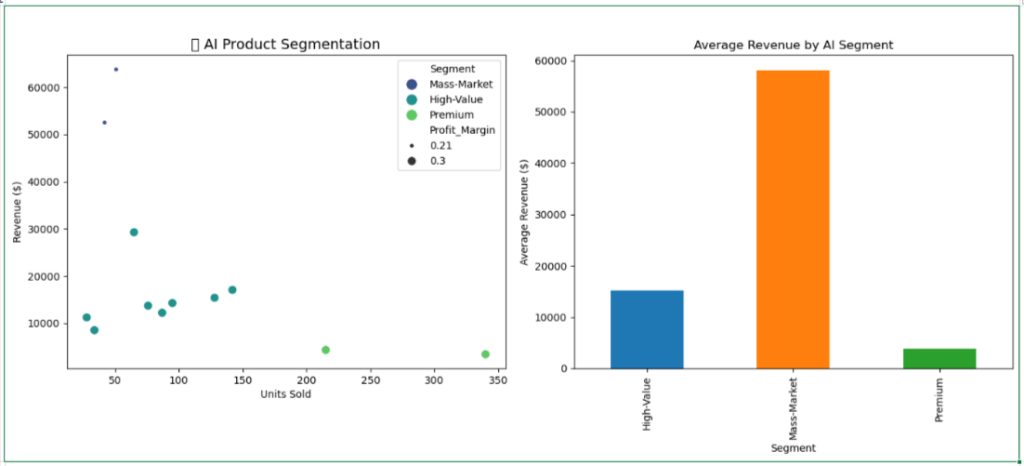
As for AI functionality on the same simple dataset, here are two examples:
Using a Python library to cluster records into similar segments
Using Python’s built-in linear regression capabilities to predict revenue
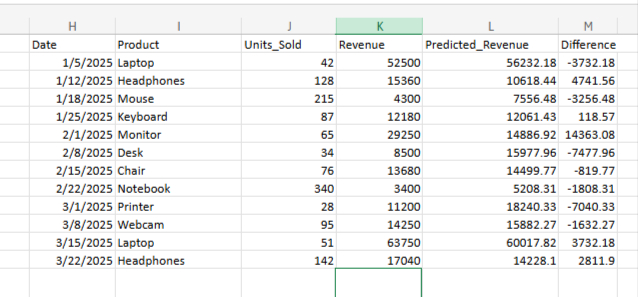
The use cases for Python and AI are immense, although they typically require advanced programming skills.
We can help you build an AI-enabled workbook that leverages Python’s built-in AI and ML capabilities.
AI Add-ins
A plethora of AI add-ins exist that let you use natural language inside cells. These add-ins mostly appeared before Copilot for Excel, so they feel somewhat extraneous these days.
For example, numerous.ai, one of the most popular tools, lets you type ChatGPT queries inside an “=AI()” formula in a cell. These days, people just type their queries into the Copilot or Claude chatbox instead.
Most of these tools use ChatGPT, Claude, or one of the other popular chatbots under the hood anyway, so you might as well go with the originals.
Using AI in Microsoft Excel code
Excel has a built-in programming language called VBA (Visual Basic for Applications) that lets you create powerful tools, all inside Excel. The language has been around for decades, and it hasn’t changed much since it was released. If you’d like to see the code editor underneath Excel, just hit Alt + F11.
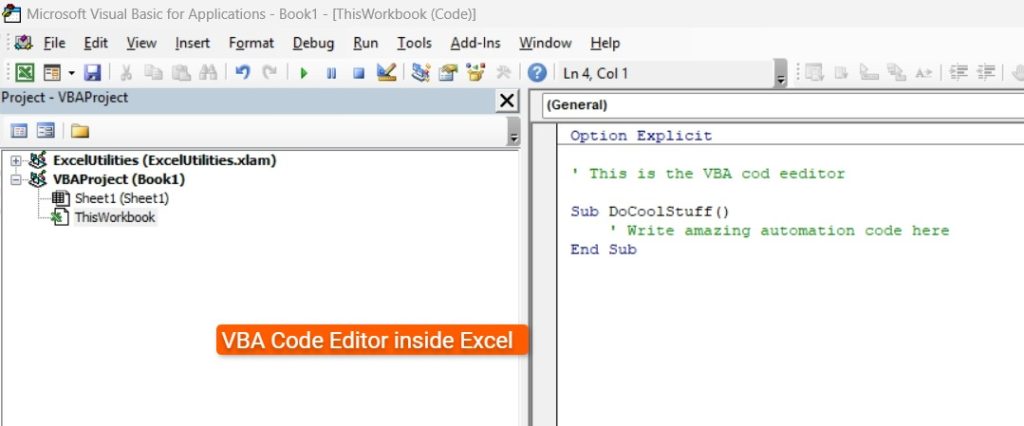
Through the code editor, you can program your Excel file to call custom AI services on the internet.
This solution is immensely flexible, and the options are almost unlimited. Just some of the things you could do with this are:
- Run AI queries on cell data.
- Accept user prompts inside Excel, but alter the output to align with company documents.
- Generate images through Excel.
- Analyse massive datasets and verify the accuracy of results returned.
- Save AI-generated results to a file.
- Save chats.
- Run sentiment analysis on public comments about your company.
Despite its sophistication, implementing such a solution is relatively simple if you know how to program in VBA, which we’ve been doing for 30 years. If you’d like to know more about this, reach out to us for more information.
Using AI to write Excel VBA code
One of the most popular use cases for generative AI is to generate programming code. Non-programmers are being told by vendors that all they need to do is write a few prompts, and they’ll have working software in no time.
The truth is a little more sobering. Professional programmers have certainly integrated AI into their workflows, and the code that AI generates is impressive. It’s also often full of errors, some of them critical.
These are easily picked up and addressed by trained programmers, but are often missed by non-programmers.
The other problem with using AI to generate VBA code is that the existing AI models haven’t been trained extensively on it, meaning they provide more erroneous VBA code than more popular code languages, like Python code. This makes it challenging to get an AI tool to generate reliable Excel VBA code.
Still, it is indeed a potential use case: Using AI to write VBA code to help you automate your Excel tools. If you’d like more professional VBA code written, or if you’d like us to review your AI-generated VBA code, just send us an email.
Advanced AI automations through custom-programmed tools
Another less common yet immensely powerful solution is to integrate Excel with AI tools through a custom-programmed solution.
For example, we used custom programming to read PDF files with an AI tool, then save the data into Excel workbooks. The tool was created outside of Excel but would read multiple PDF files, extract their content using AI, and then save the data into a predefined Excel file.
The options on how to integrate AI with Excel through custom tools are endless.
Where we stand with Excel and AI
The hype surrounding AI has been truly breathtaking. Unfortunately, much of that hype hasn’t materialised, especially when it comes to high-accuracy tasks.
Arguably, the most significant gains that AI has given the day-to-day worker are:
- Better programming tools
- Better search and research tools
Yes, it’s possible to use AI to query data in a spreadsheet and create dashboards, but the accuracy cannot be guaranteed, and the quality is subpar.
For more professional results, it’s best to do it yourself or hire a pro. For high-accuracy results regarding financial calculations, AI is more of a risk than a solution.
Still, the field is constantly evolving, and we continue to monitor it as professional programmers, suggesting solutions to clients wherever we feel the risk is manageable.
For personal use cases, by all means, use Copilot and Claude. For more sophisticated uses, we recommend using Python for Excel or building a custom AI tool that has guardrails to validate the data it processes. We can help you in both these cases. Just reach out to us for more info.
Excel and AI Frequently Asked Questions (FAQs)
Which is better, Microsoft Copilot or Claude for Excel?
Claude for Excel is generally better for power users who want faster responses, stronger formula suggestions, and no OneDrive requirement. Copilot is more convenient for beginners.
Can beginners use AI in Excel without knowing formulas?
Yes. However, a fundamental knowledge of formulas will help you do more with AI for Excel.
What are the biggest risks of using AI with Excel?
The main risks are hallucinations (wrong answers) and over-reliance on AI for important decisions.
Does Python for Excel require coding experience?
Ideally, yes, although you can also use AI to help you generate Python code.